User and Workspace Settings
You can configure Visual Studio Code to your liking through its various settings. Nearly every part of VS Code's editor, user interface, and functional behavior has options you can modify.
VS Code provides several different scopes for settings. When you open a workspace, you will see at least the following two scopes:
- User Settings - Settings that apply globally to any instance of VS Code you open.
- Workspace Settings - Settings stored inside your workspace and only apply when the workspace is opened.
In this article, we'll first describe user settings as these are your personal settings for customizing VS Code. Later we'll cover Workspace settings, which will be specific to the project you're working on.
Settings editor
To modify user settings, you'll use the Settings editor to review and change VS Code settings.
To open the Settings editor, navigate to File > Preferences > Settings.
You can also open the Settings editor from the Command Palette (⇧⌘P (Windows, Linux Ctrl+Shift+P)) with Preferences: Open Settings or use the keyboard shortcut (⌘, (Windows, Linux Ctrl+,)).
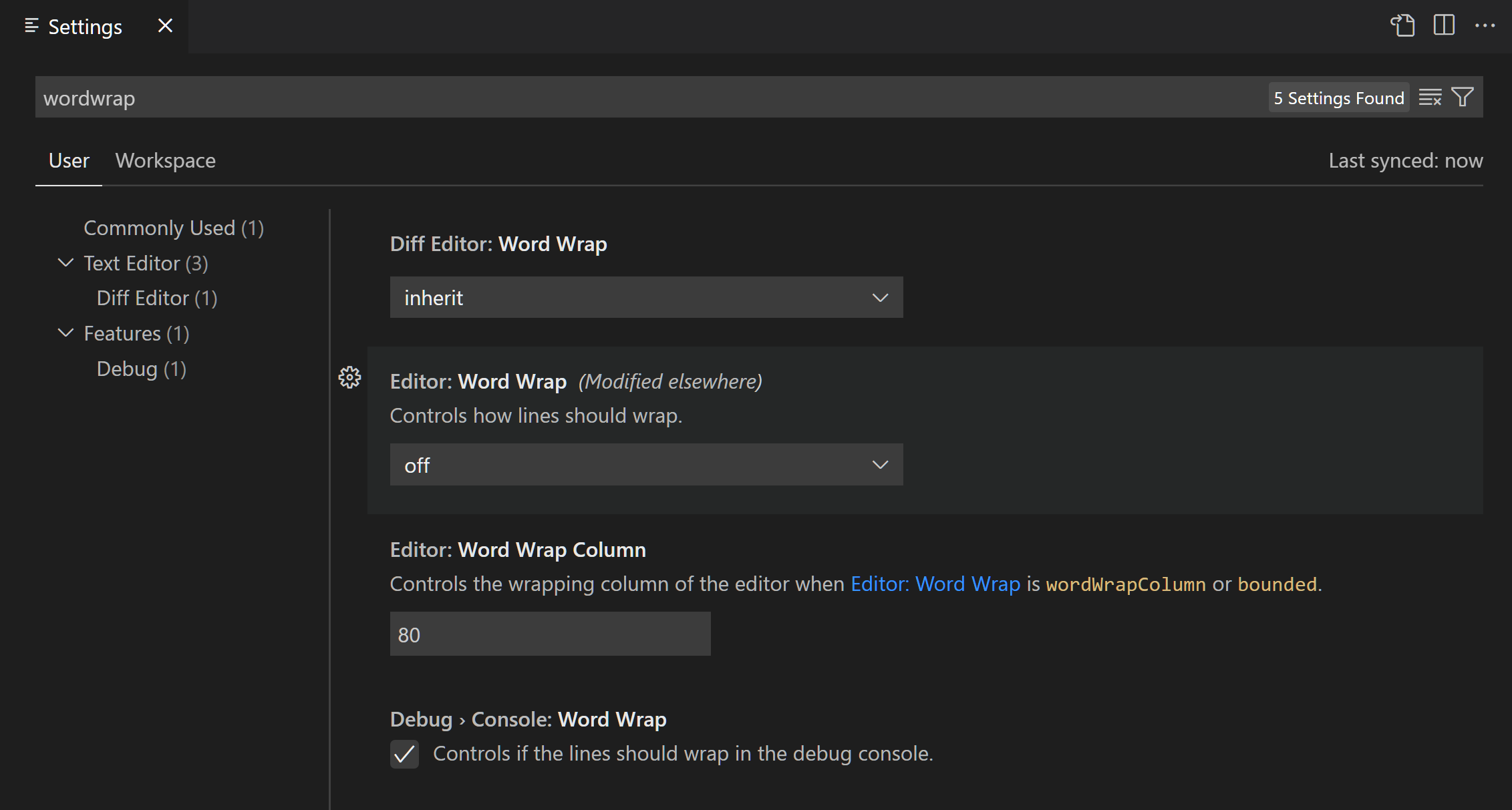
When you open the Settings editor, you can search and discover the settings you are looking for. When you search using the Search bar, it will not only show and highlight the settings matching your criteria, but also filter out those which are not matching. This makes finding settings quick and easy.
In the example below, the Side Bar location and file icon theme have been changed.
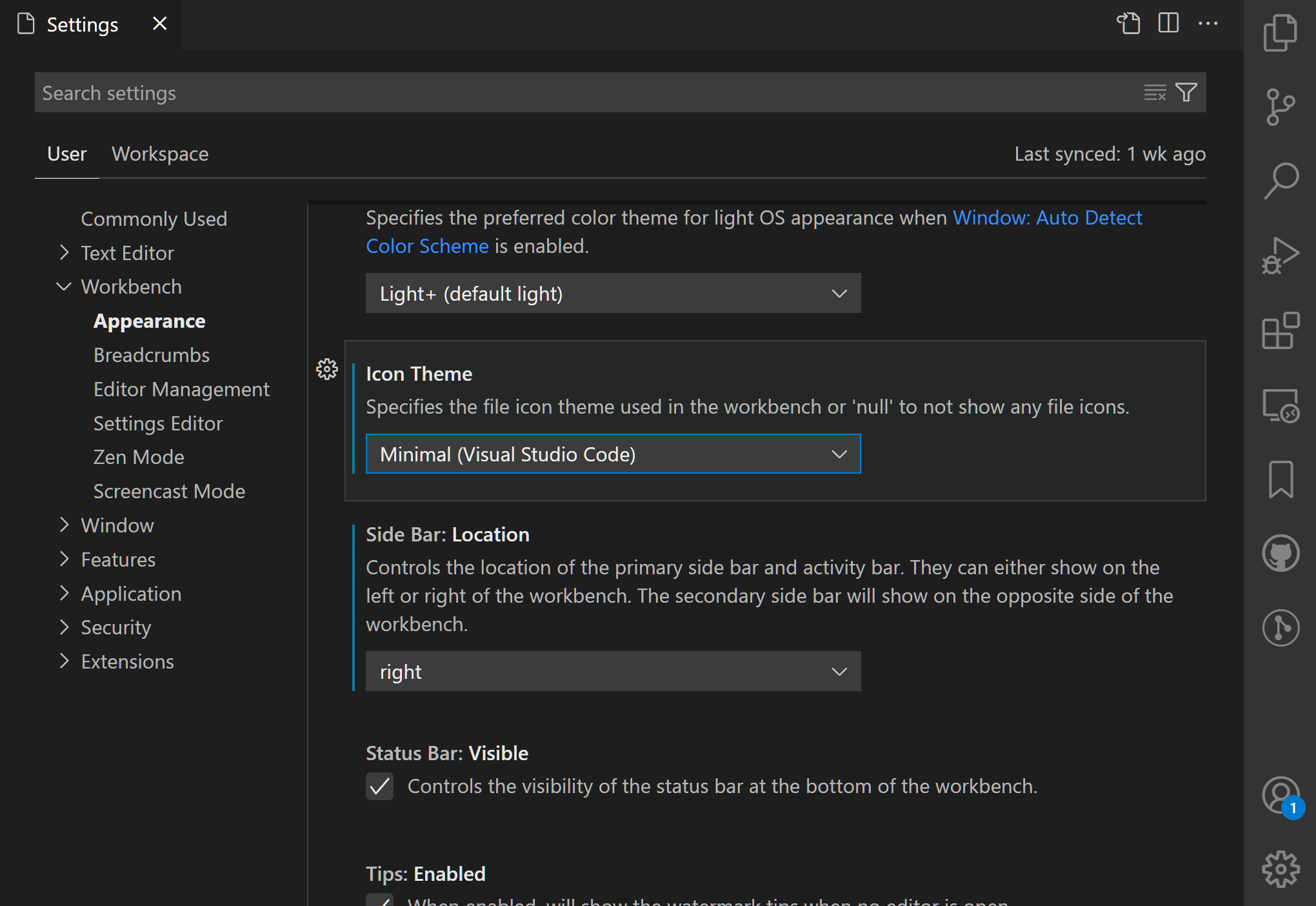
Changes to settings are applied by VS Code as you change them. Modified settings are indicated with a blue line similar to modified lines in the editor.
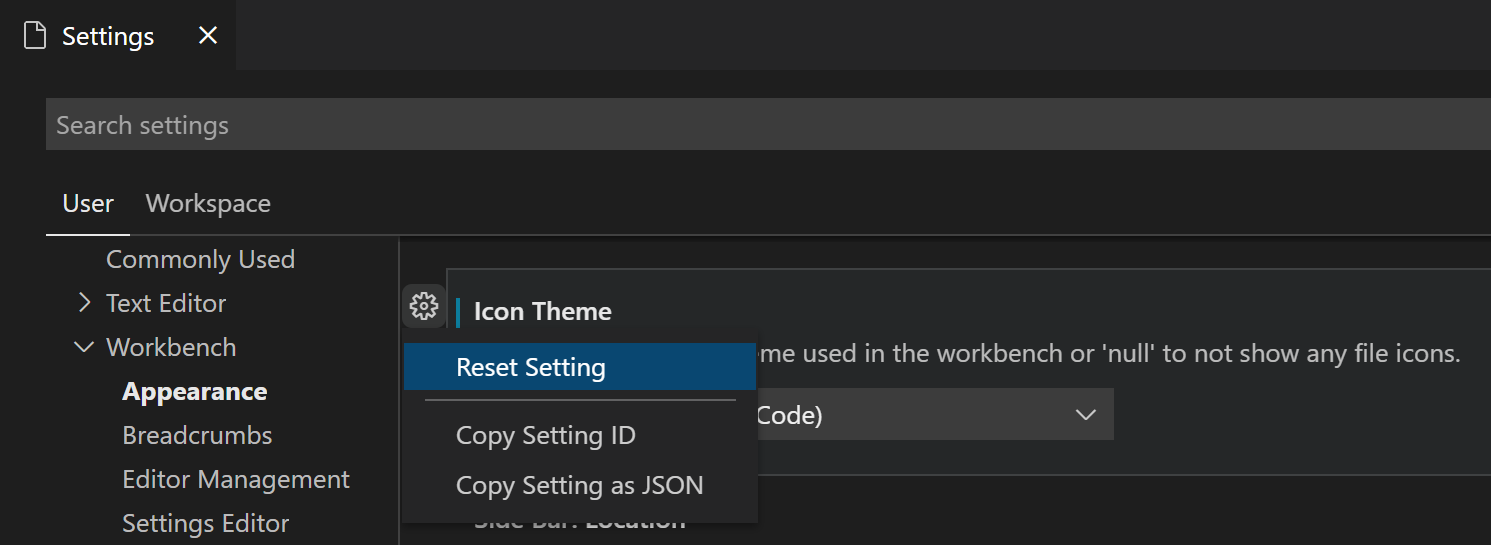
The gear icon (More Actions... ⇧F9 (Windows, Linux Shift+F9)) opens a context menu with options to reset the setting to its default value as well as copy the setting ID or JSON name-value pair.
Edit settings
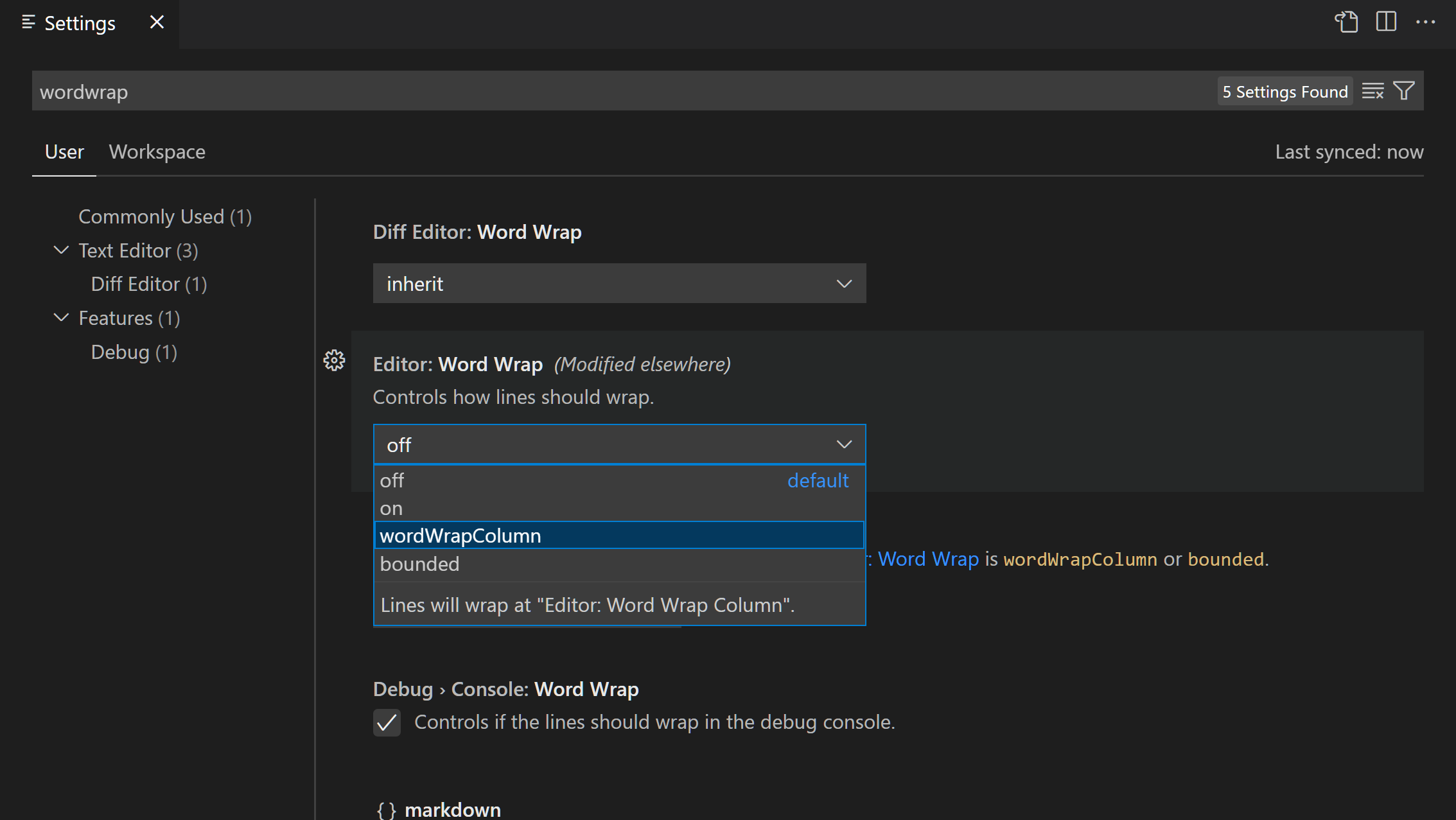
Each setting can be edited by either a checkbox, an input or a dropdown. Edit the text or select the option you want to change to the desired settings.
Settings groups
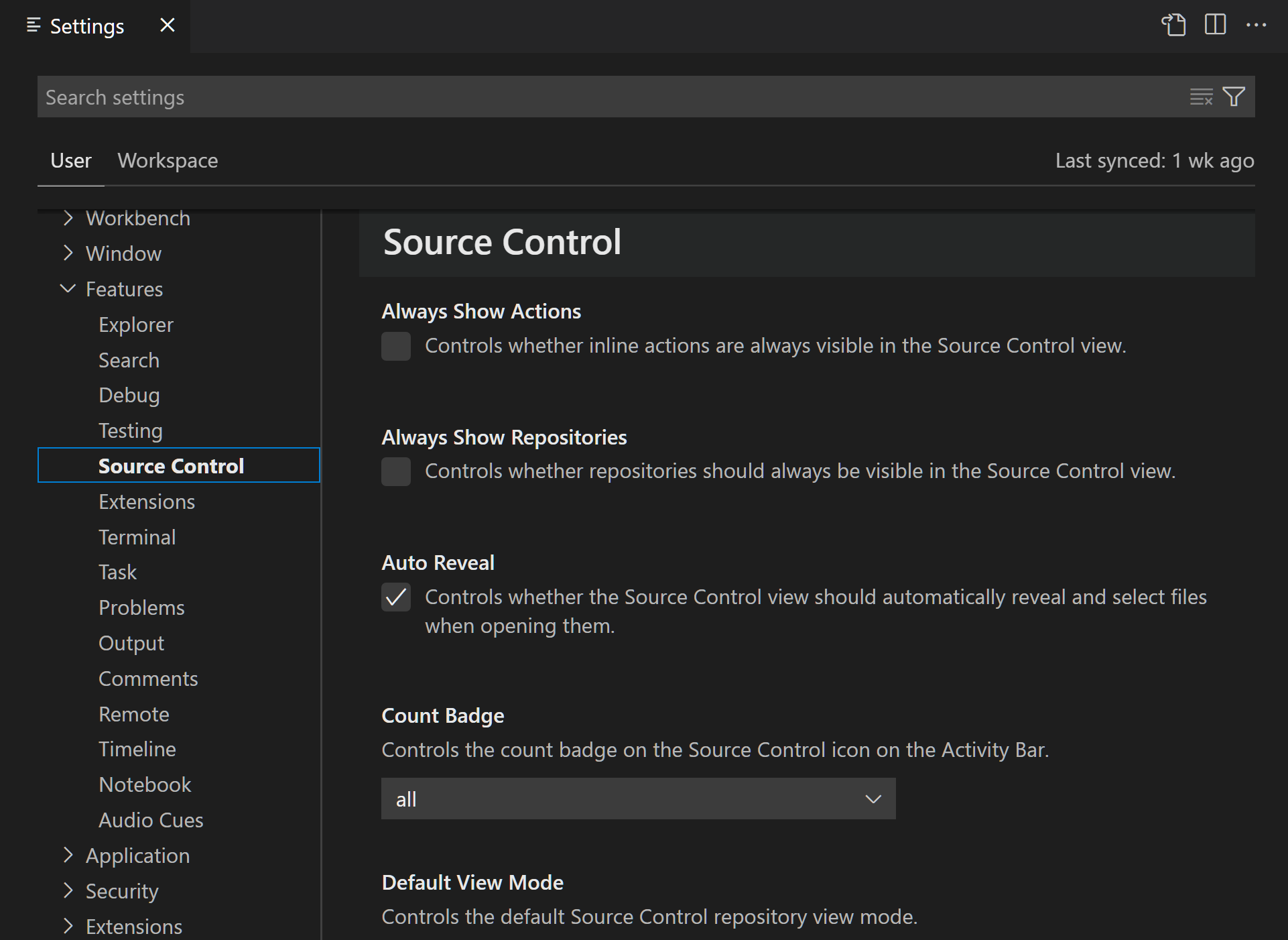
Settings are represented in groups so that you can navigate them easily. There is a Commonly Used group at the top, which shows popular customizations.
Below, the Source Control settings are focused by selecting Source Control in the tree view.
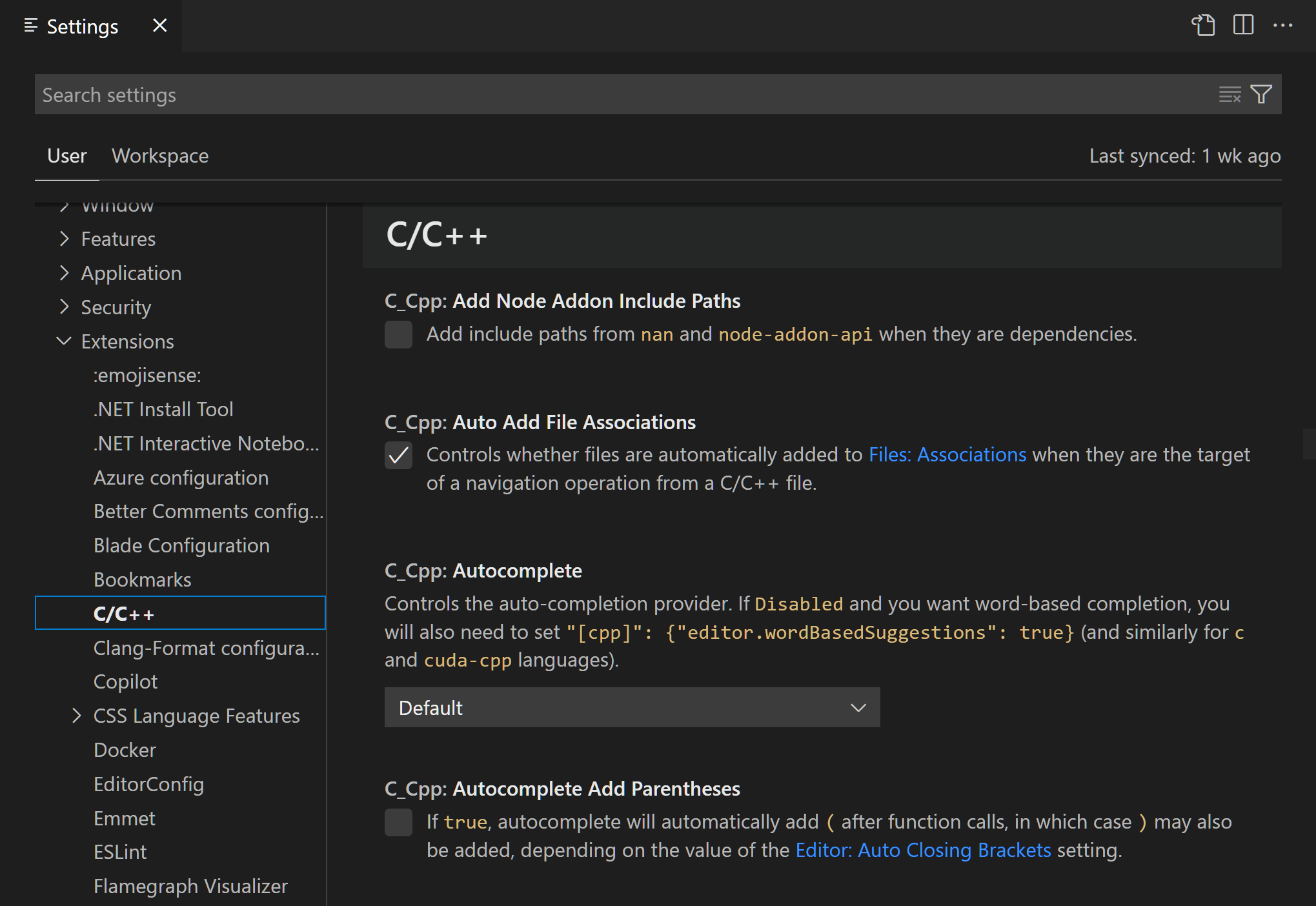
Note: VS Code extensions can also add their own custom settings, and those settings will be visible under an Extensions section.
Changing a setting
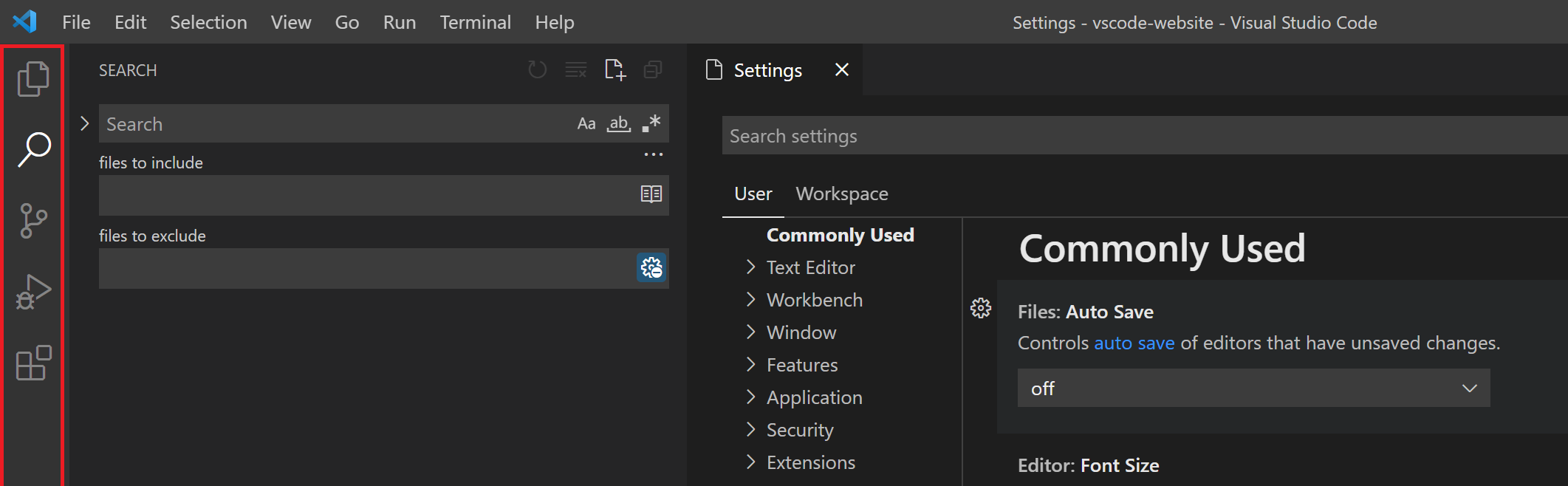
As an example, let's hide the Activity Bar from VS Code. The Activity Bar is the wide border on the left with various icons for different views such as the File Explorer, Search, Source Control, and Extensions. You might want to hide the Activity Bar to give the editor a little more room, or if you prefer to open views via the View menu or Command Palette.
Open the Settings Editor (⌘, (Windows, Linux Ctrl+,)) and type "activity" in the Search bar. You should see at least five settings.
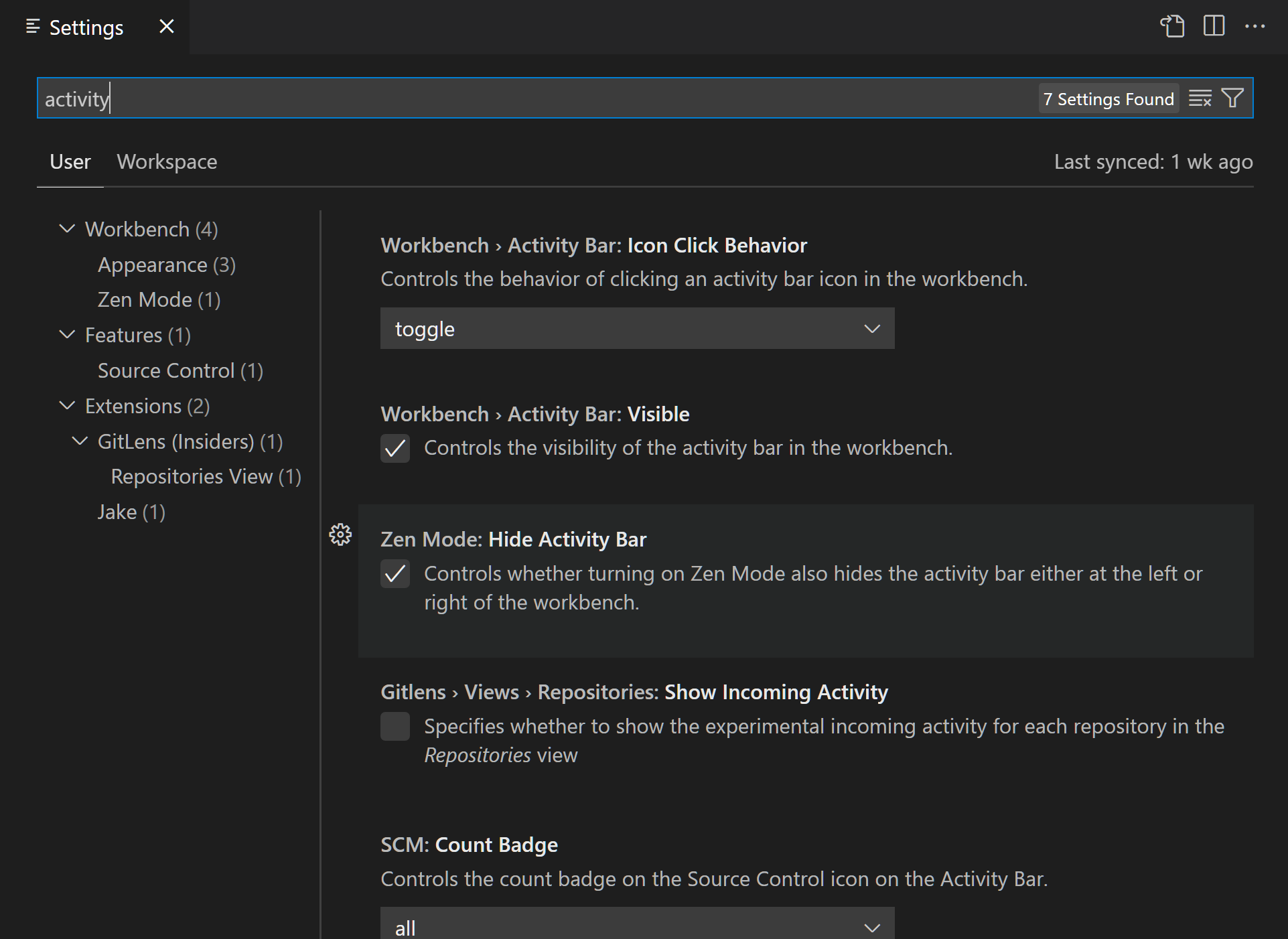
You can further limit the scope to just those settings under the Appearance group in the table of contents on the left. There should now be just three settings.
You can now check and uncheck the Workbench > Activity Bar: Visible setting to hide and unhide the Activity Bar. Notice that when you have changed the setting value to be different than the default value, you see a blue line to the left.
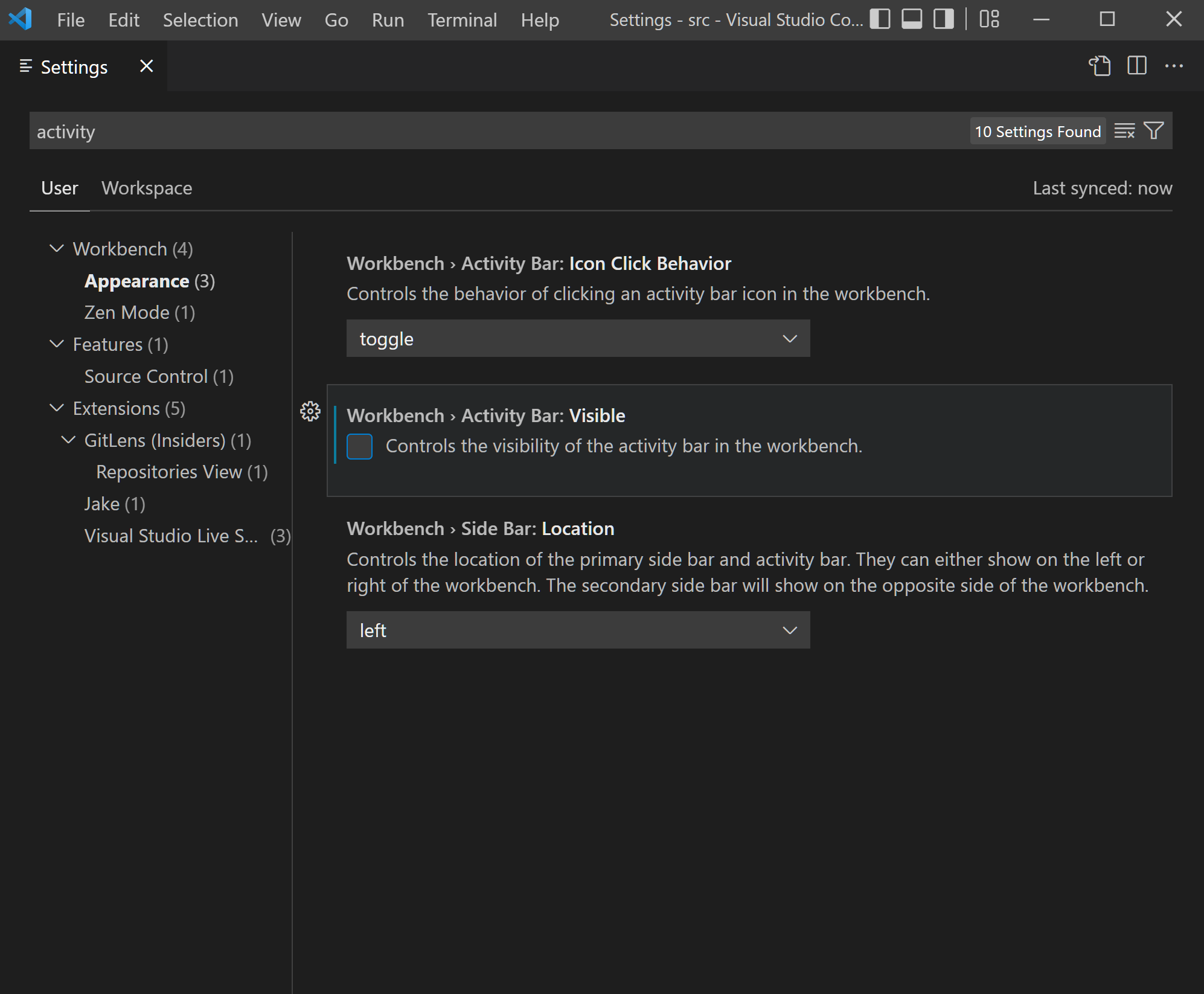
You can always reset a setting to the default value by hovering over a setting to show the gear icon, clicking on the gear icon, and then selecting the Reset Setting action.
Settings editor filters
The Settings editor Search bar has several filters to make it easier to manage your settings. To the right of the Search bar is a filter button with a funnel icon that provides some options to easily add a filter to the Search bar.
Modified settings
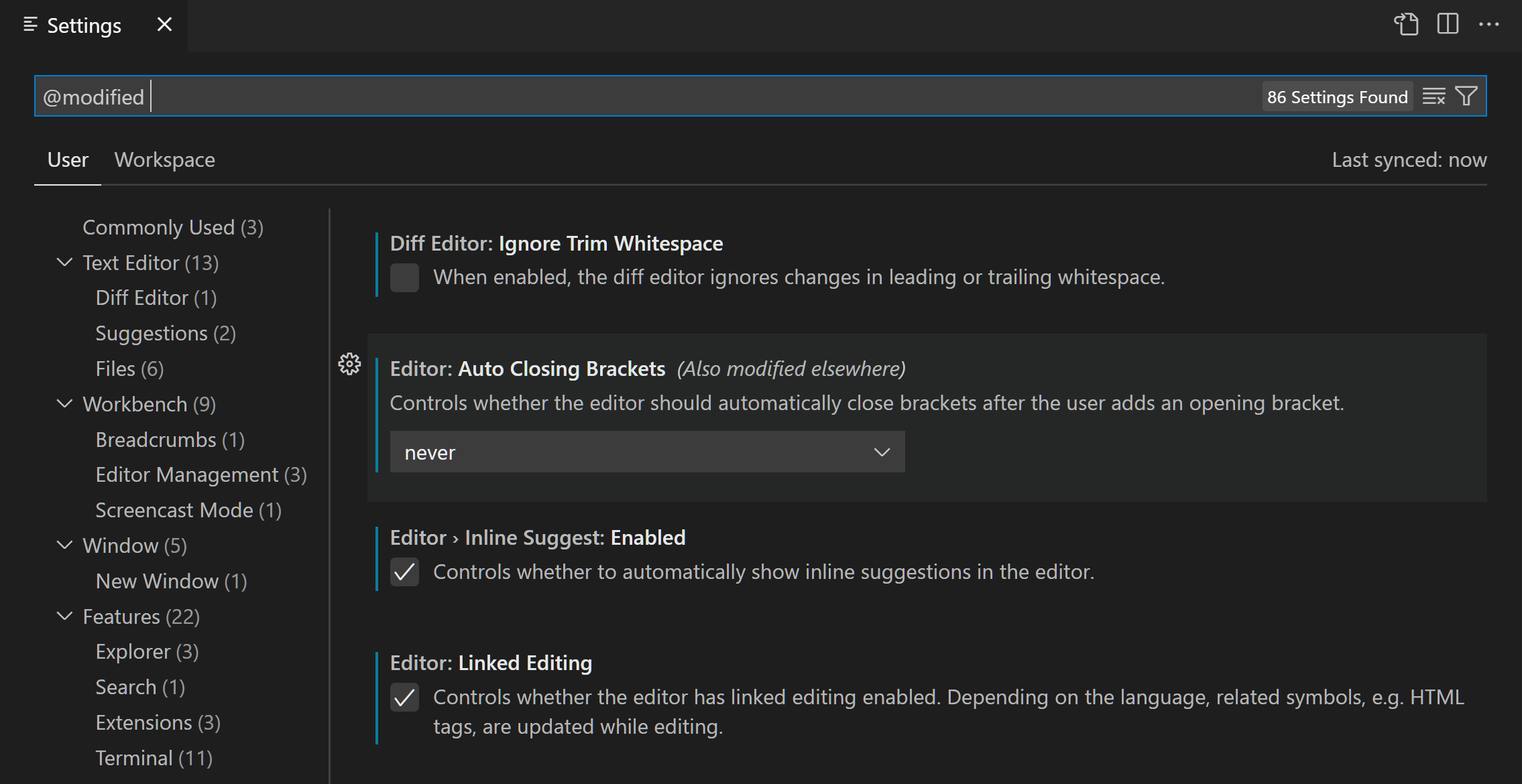
To check which settings you have configured, there is a @modified filter in the Search bar. A setting shows up under this filter if its value differs from the default value, or if its value is explicitly set in the respective settings JSON file. This filter can be useful if you have forgotten whether you configured a setting, or if the editor is not behaving as you expect because you accidentally configured a setting.
Other filters
There are several other handy filters to help with searching through settings.
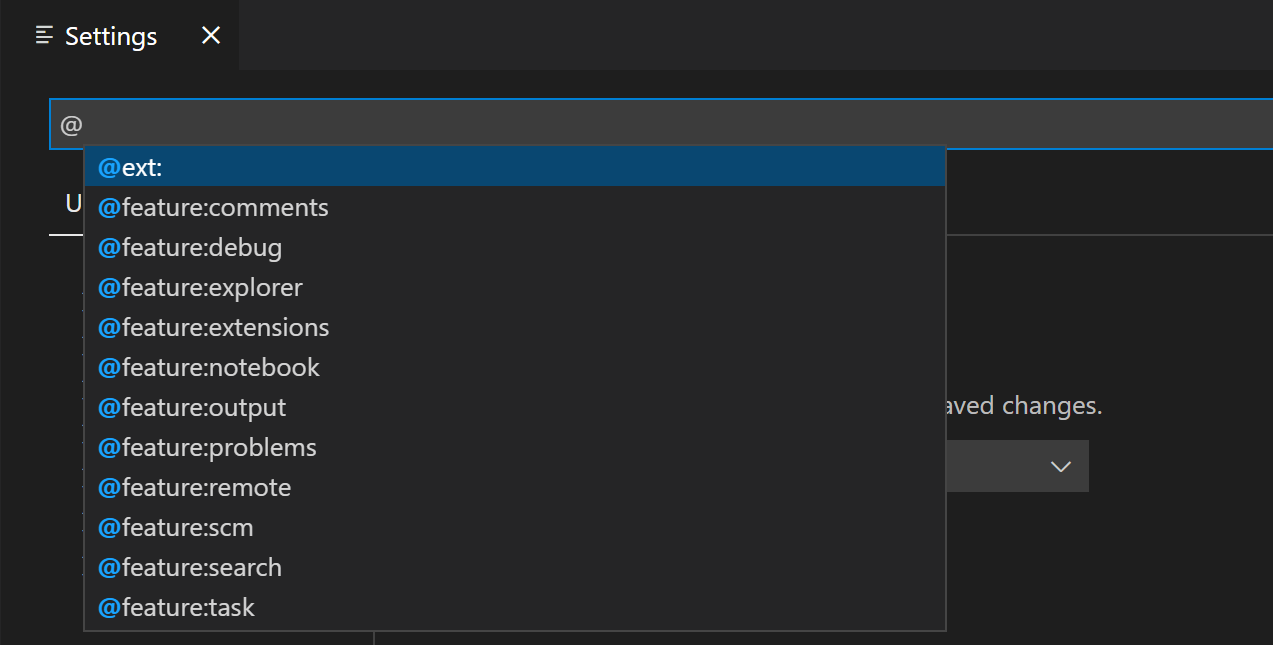
Here are some of the filters available:
@ext- Settings specific to an extension. You provide the extension ID such as@ext:ms-python.python.@feature- Settings specific to a Features subgroup. For example,@feature:explorershows settings of the File Explorer.@id- Find a setting based on the setting ID. For example,@id:workbench.activityBar.visible.@lang- Apply a language filter based on a language ID. For example,@lang:typescript. See Language-specific editor settings for more details.@tag- Settings specific to a system of VS Code. For example,@tag:workspaceTrustfor settings related to Workspace Trust, or@tag:accessibilityfor settings related to accessibility.
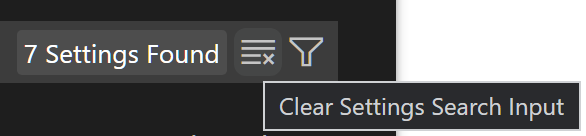
The Search bar remembers your settings search queries and supports Undo/Redo (⌘Z (Windows, Linux Ctrl+Z)/⇧⌘Z (Windows, Linux Ctrl+Y)). You can quickly clear a search term or filter with the Clear Settings Search Input button at the right of the Search bar.
Extension settings
Installed VS Code extensions can also contribute their own settings, which you can review under the Extensions section of the Settings editor.
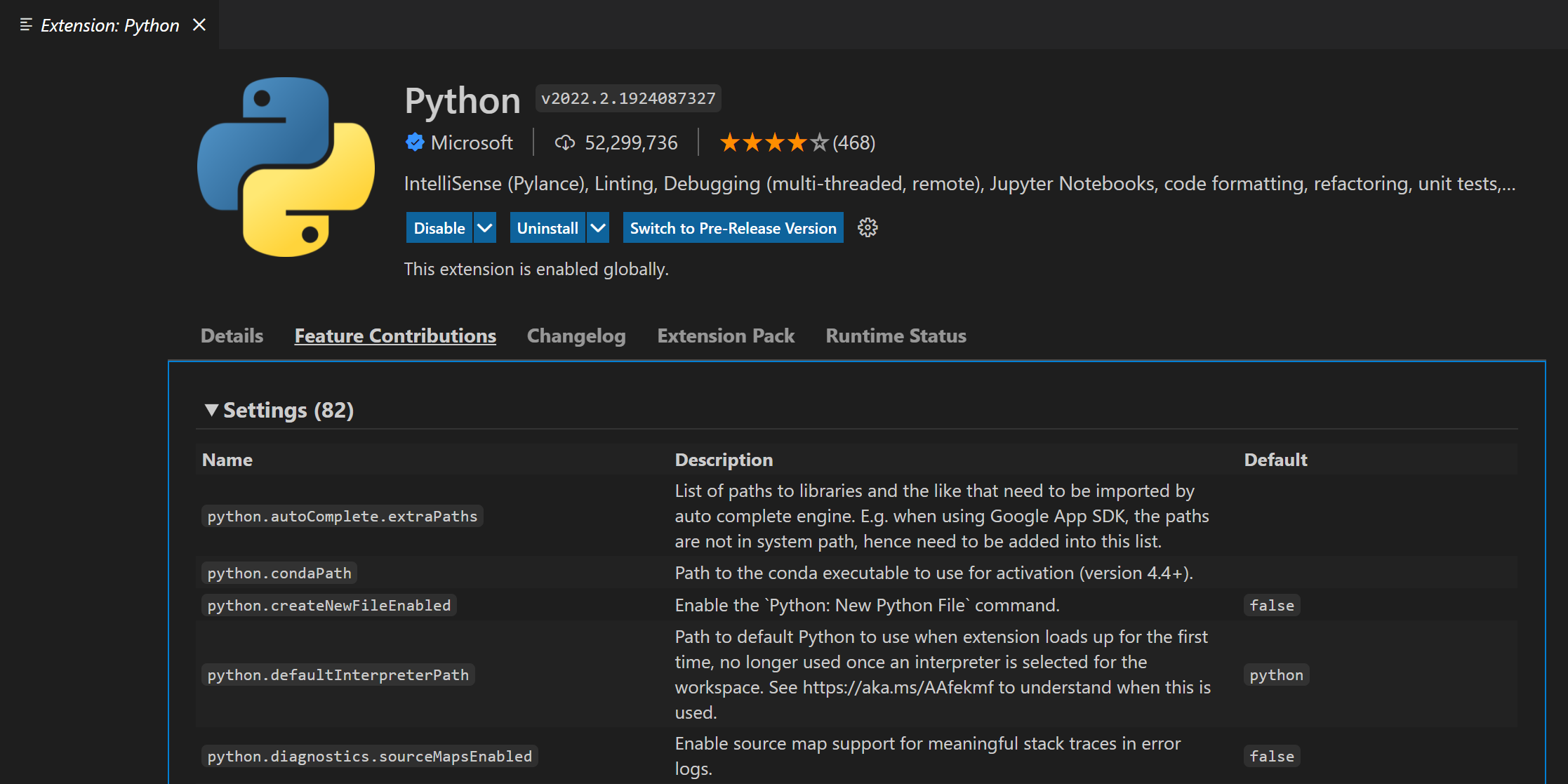
You can also review an extension's settings from the Extensions view (⇧⌘X (Windows, Linux Ctrl+Shift+X)) by selecting the extension and reviewing the Feature Contributions tab.
Extension authors can learn more about adding custom settings in the configuration contribution point documentation.
settings.json
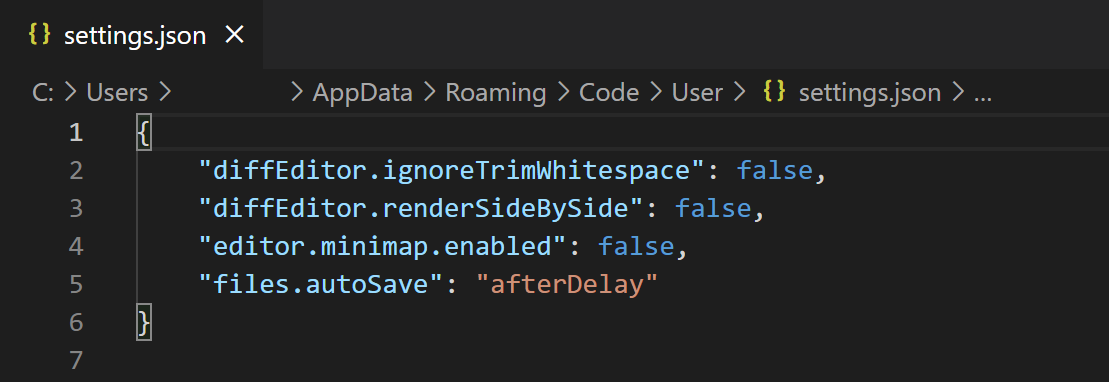
The Settings editor is the UI that lets you review and modify setting values that are stored in a settings.json file. You can review and edit this file directly by opening it in the editor with the Preferences: Open User Settings (JSON) command. Settings are written as JSON by specifying the setting ID and value.
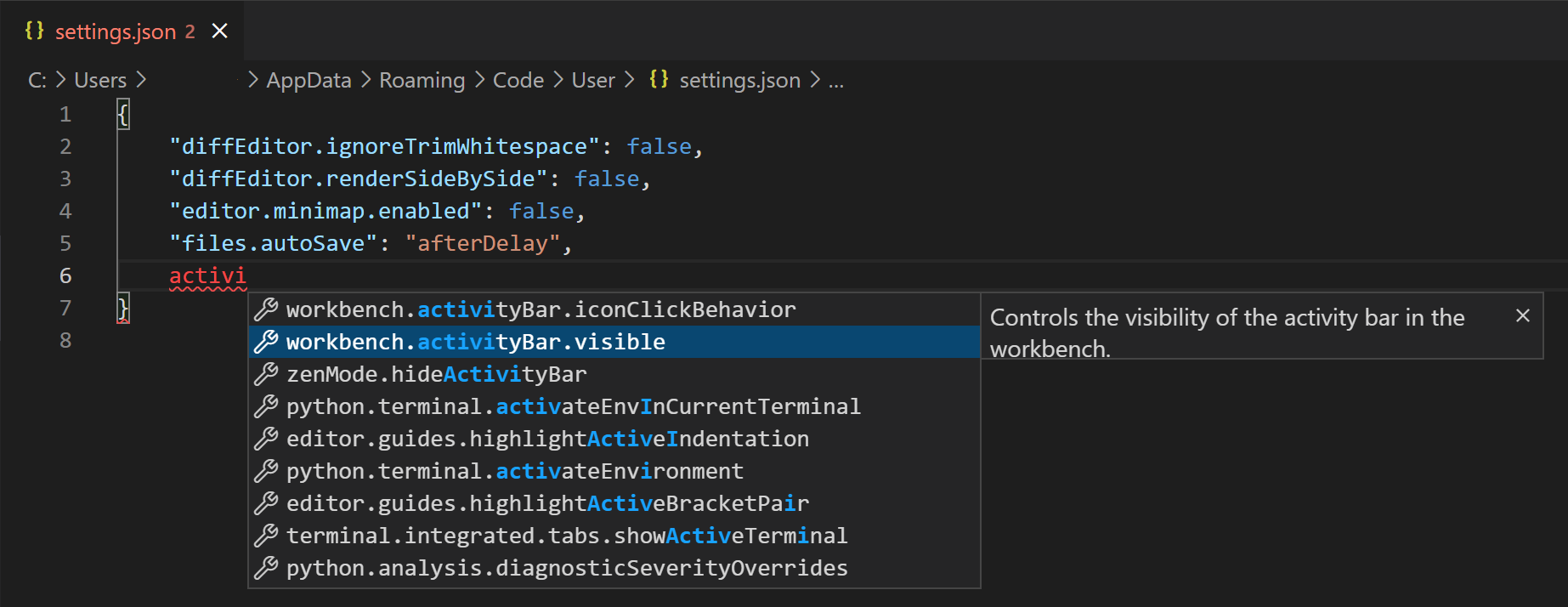
The settings.json file has full IntelliSense with smart completions for settings and values and description hovers. Errors due to incorrect setting names or JSON formatting are also highlighted.
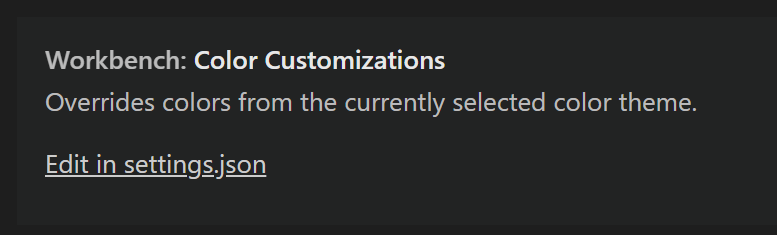
Some settings can only be edited in settings.json such as Workbench: Color Customizations and show a Edit in settings.json link in the Settings editor.
Changing settings.json
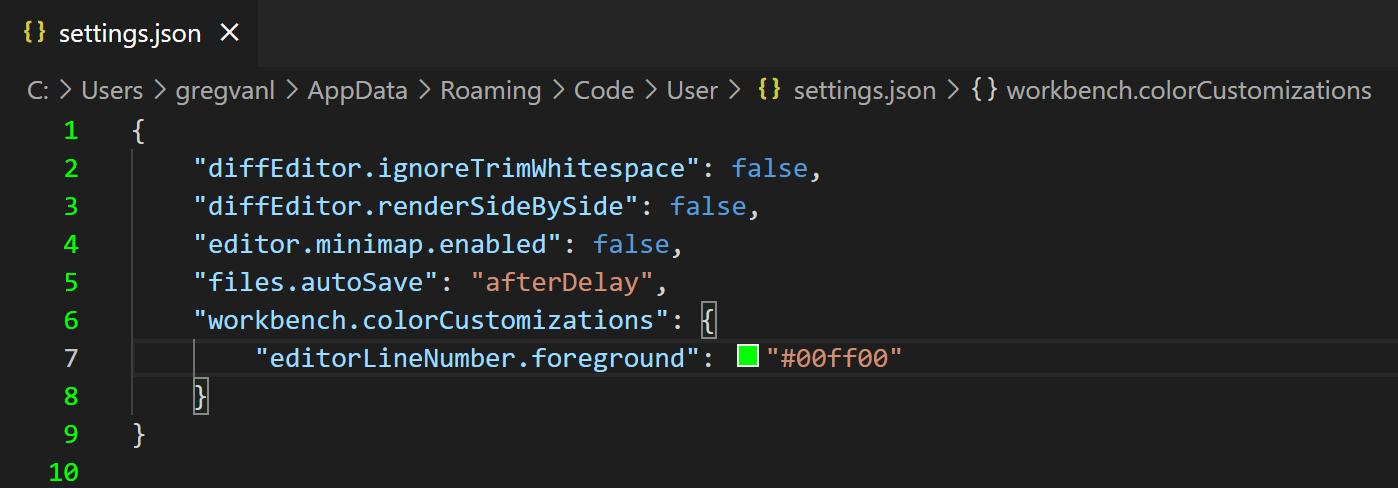
As an example, lets change the editor line number color. Click the Edit in settings.json link and add the following JSON:
     "workbench.colorCustomizations": {
        "editorLineNumber.foreground": "#00ff00"
    }
Here the line numbers in the editor for the settings.json file are now green.
Remove the workbench.colorCustomizations setting code block to return the line number color to the default.
Note: The example above changes the editor line number for all Color Themes, but you can tune colors per specific Color Theme or even create your own Color Theme extension.
If you prefer to always work directly with settings.json, you can set "workbench.settings.editor": "json" so that File > Preferences > Settings and the keybinding ⌘, (Windows, Linux Ctrl+,) always opens the settings.json file and not the Setting editor UI.
Settings file locations
Depending on your platform, the user settings file is located here:
- Windows
%APPDATA%\Code\User\settings.json - macOS
$HOME/Library/Application\ Support/Code/User/settings.json - Linux
$HOME/.config/Code/User/settings.json
Reset all settings
While you can reset settings individually via the Settings editor Reset Setting command, you can reset all changed settings by opening settings.json and deleting the entries between the braces {}. Be careful since there will be no way to recover your previous setting values.
Workspace settings
Workspace settings are specific to a project and can be shared across developers on a project. Workspace settings override user settings.
Note: A VS Code "workspace" is usually just your project root folder. Workspace settings as well as debugging and task configurations are stored at the root in a
.vscodefolder. You can also have more than one root folder in a VS Code workspace through a feature called Multi-root workspaces. You can learn more in the What is a VS Code "workspace"? article.
You can edit via the Settings editor Workspace tab or open that tab directly with the Preferences: Open Workspace Settings command.
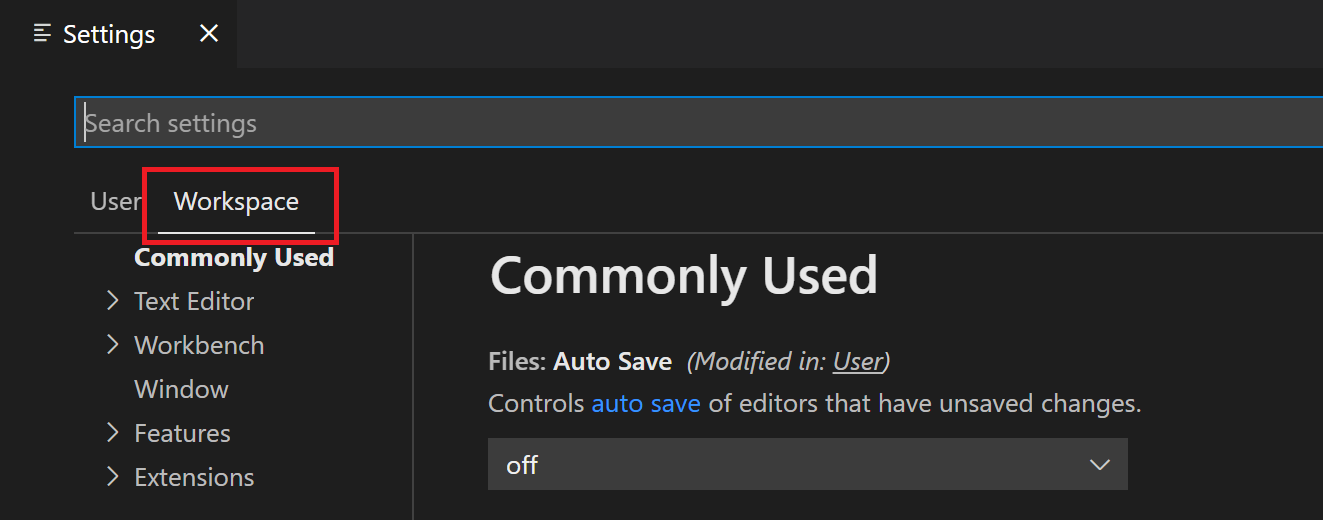
All features of the Settings editor such as settings groups, search, and filtering behave the same for Workspace settings. Not all User settings are available as Workspace settings. For example, application-wide settings related to updates and security can not be overridden by Workspace settings.
Workspace settings.json location
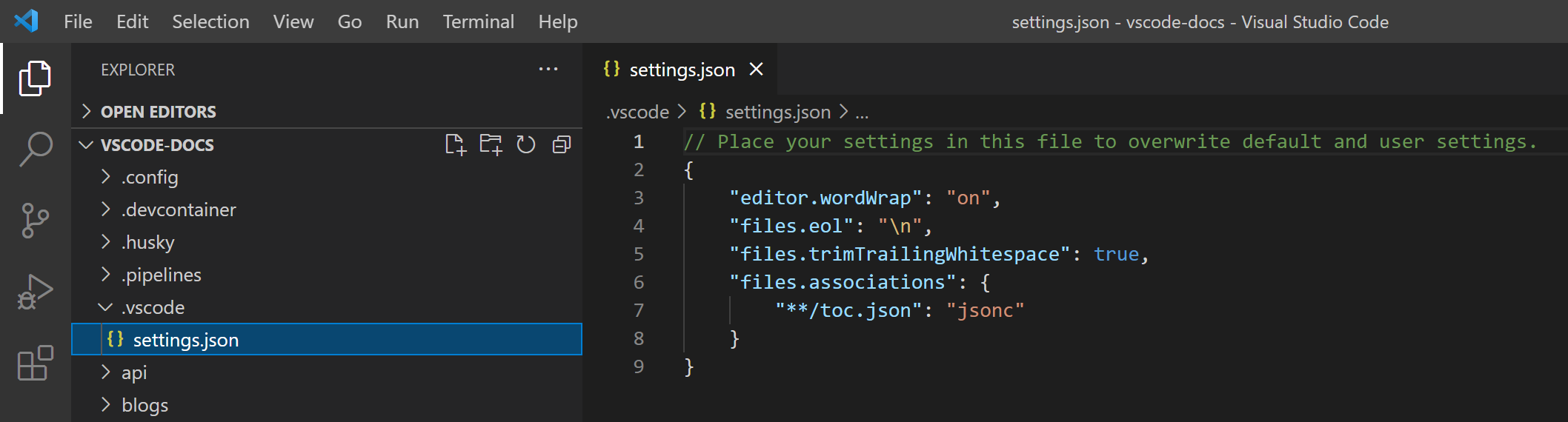
Similar to User Settings, Workspace Settings are also stored in a settings.json file, which you can edit directly via the Preferences: Open Workspace Settings (JSON) command.
The workspace settings file is located under the .vscode folder in your root folder.
Note: For a Multi-root Workspace, workspace settings are located inside the workspace configuration file.
When you add a Workspace Settings settings.json file to your project or source control, the settings for the project will be shared by all users of that project.
Language specific editor settings
One way to customize language-specific settings is by opening the Settings editor, pressing on the filter button, and selecting the language option to add a language filter. Alternatively, one can directly type a language filter of the form @lang:languageId into the search widget. The settings that show up will be configurable for that specific language, and will show the setting value specific to that language, if applicable.
When modifying a setting while there is a language filter in place, the setting will be configured in the given scope for that language.
For example, when modifying the user-scope diffEditor.codeLens setting while there is a @lang:css filter in the search widget, the Settings editor will save the new value to the CSS-specific section of the user settings file.
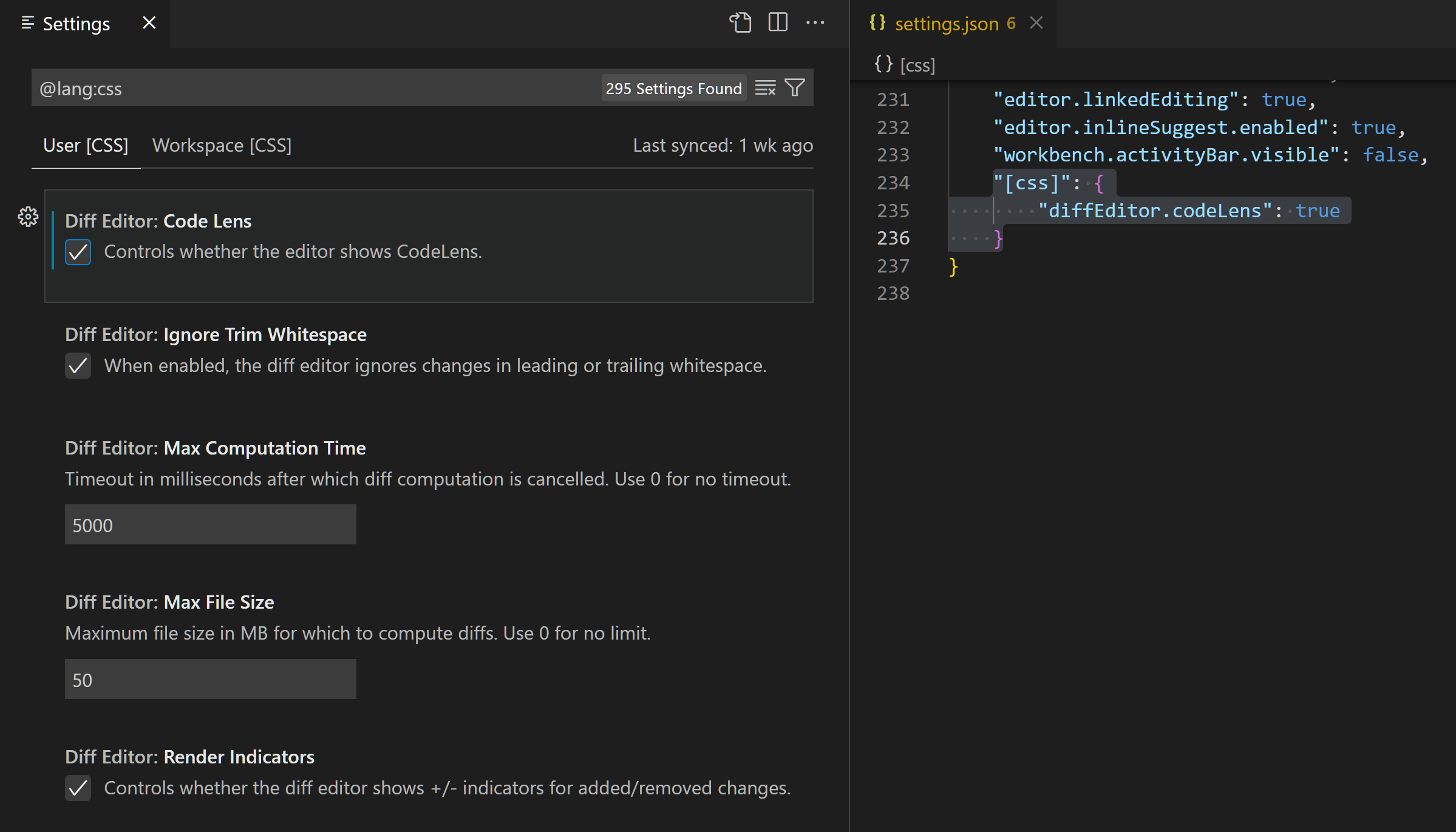
Note: If you enter more than one language filter in the search widget, the current behavior is that only the first language filter will be used.
Another way to customize your editor by language is by running the global command Preferences: Configure Language Specific Settings (command ID: workbench.action.configureLanguageBasedSettings) from the Command Palette (⇧⌘P (Windows, Linux Ctrl+Shift+P)) which opens the language picker. Select the language you want. Then, the Settings editor opens with a language filter for the selected language, which allows you to modify language-specific settings for that language. Though, if you have the workbench.settings.editor setting set to json, then the settings.json file opens with a new language entry where you can add applicable settings.
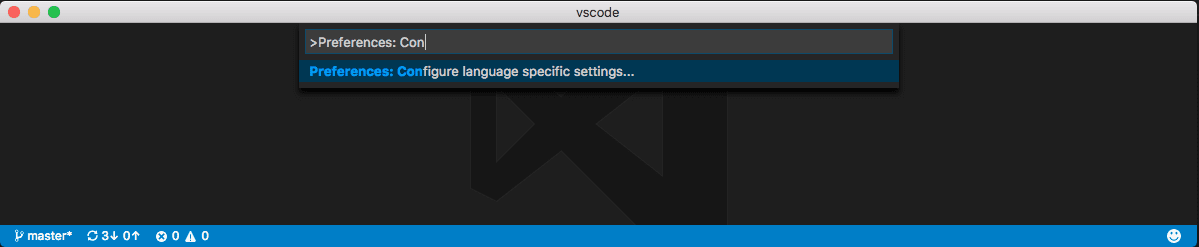
Select the language via the dropdown:
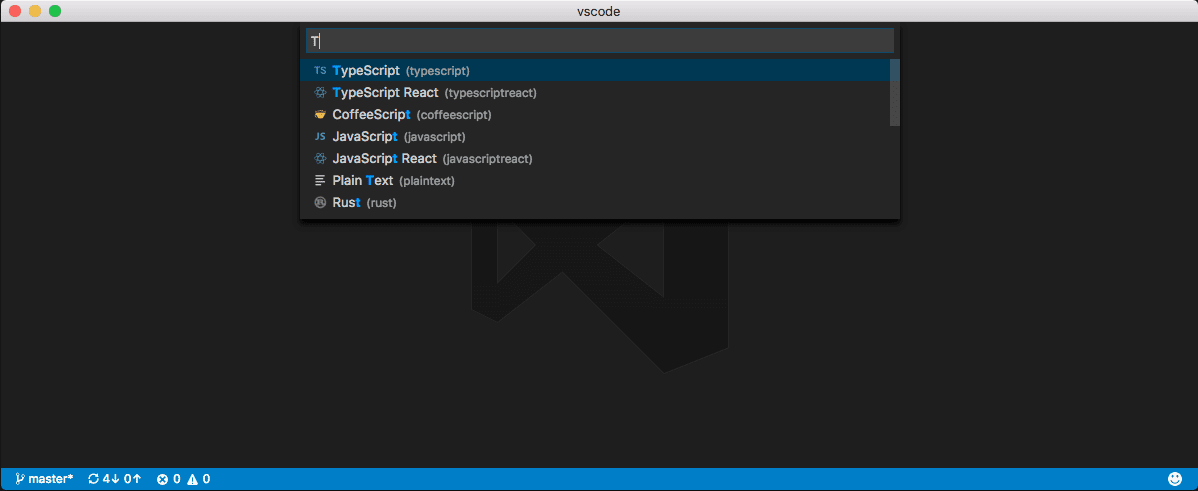
Now you can start editing settings specifically for that language:
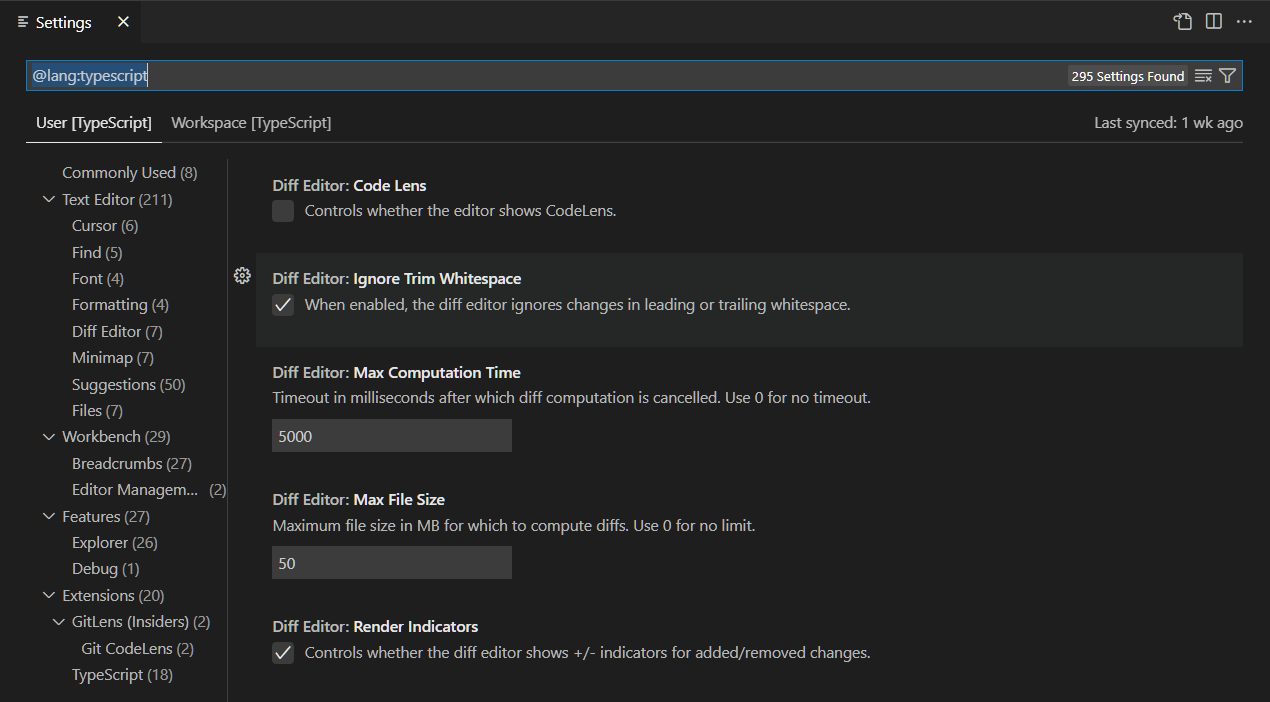
Or, if workbench.settings.editor is set to json, now you can start adding language-specific settings to your user settings:
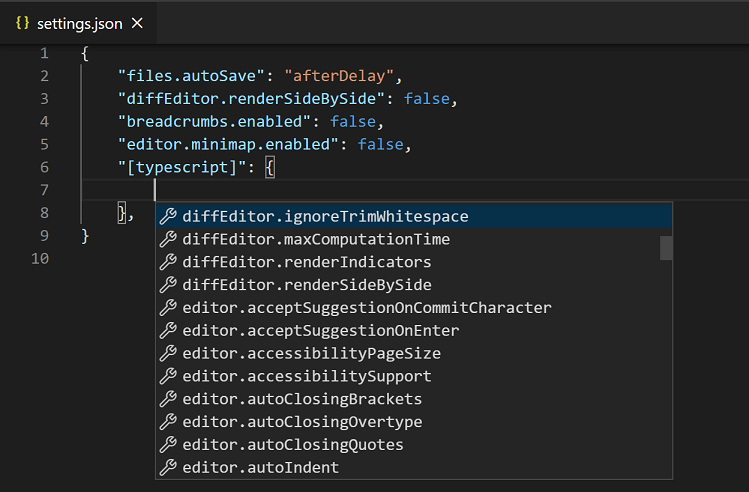
If you have a file open and you want to customize the editor for this file type, select the Language Mode in the Status Bar to the bottom-right of the VS Code window. This opens the Language Mode picker with an option Configure 'language_name' language based settings. Selecting this opens your user settings.json with the language entry where you can add applicable settings.
Language-specific editor settings always override non-language-specific editor settings, even if the non-language-specific setting has a narrower scope. For example, language-specific user settings override non-language-specific workspace settings.
You can scope language-specific settings to the workspace by placing them in the workspace settings just like other settings. If you have settings defined for the same language in both user and workspace scopes, then they are merged by giving precedence to the ones defined in the workspace.
The following example can be pasted into a settings JSON file to customize editor settings for the typescript and markdown language modes.
{
  "[typescript]": {
    "editor.formatOnSave": true,
    "editor.formatOnPaste": true
  },
  "[markdown]": {
    "editor.formatOnSave": true,
    "editor.wordWrap": "on",
    "editor.renderWhitespace": "all",
    "editor.acceptSuggestionOnEnter": "off"
  }
}
You can use IntelliSense in settings.json to help you find language-specific settings. All editor settings and some non-editor settings are supported. Some languages have default language-specific settings already set, which you can review in defaultSettings.json by running the Preferences: Open Default Settings command.
Multiple language-specific editor settings
You can configure language specific editor settings for multiple languages at once. The following example shows how you can customize settings for javascript and typescript languages together in your settings.json file:
"[javascript][typescript]": {
  "editor.maxTokenizationLineLength": 2500
}
Settings precedence
Configurations can be overridden at multiple levels by the different setting scopes. In the following list, later scopes override earlier scopes:
- Default settings - This scope represents the default unconfigured setting values.
- User settings - Apply globally to all VS Code instances.
- Remote settings - Apply to a remote machine opened by a user.
- Workspace settings - Apply to the open folder or workspace.
- Workspace Folder settings - Apply to a specific folder of a multi-root workspace.
- Language-specific default settings - These are language-specific default values that can be contributed by extensions.
- Language-specific user settings - Same as User settings, but specific to a language.
- Language-specific remote settings - Same as Remote settings, but specific to a language.
- Language-specific workspace settings - Same as Workspace settings, but specific to a language.
- Language-specific workspace folder settings - Same as Workspace Folder settings, but specific to a language.
- Policy settings - Set by the system administrator, these values always override other setting values.
Setting values can be of various types:
- String -
"files.autoSave": "afterDelay" - Boolean -
"editor.minimap.enabled": true - Number -
"files.autoSaveDelay": 1000 - Array -
"editor.rulers": [] - Object -
"search.exclude": { "**/node_modules": true, "**/bower_components": true }
Values with primitive types and Array types are overridden, meaning a configured value in a scope that takes precedence over another scope is used instead of the value in the other scope. But, values with Object types are merged.
For example, workbench.colorCustomizations takes an Object that specifies a group of UI elements and their desired colors. If your user settings set the editor backgrounds to blue and green:
  "workbench.colorCustomizations": {
    "editor.background": "#000088",
    "editor.selectionBackground": "#008800"
  }
And your open workspace settings set the editor foreground to red:
  "workbench.colorCustomizations": {
    "editor.foreground": "#880000",
    "editor.selectionBackground": "#00FF00"
  }
The result, when that workspace is open, is the combination of those two color customizations, as if you had specified:
  "workbench.colorCustomizations": {
    "editor.background": "#000088",
    "editor.selectionBackground": "#00FF00",
    "editor.foreground": "#880000"
  }
If there are conflicting values, such as editor.selectionBackground in the example above, the usual override behavior occurs, with workspace values taking precedence over user values, and language-specific values taking precedence over non-language-specific values.
Note about multiple language specific settings
If you are using multiple language-specific settings, be aware that language-specific settings are merged and precedence is set based on the full language string (for example "[typescript][javascript]") and not the individual language IDs (typescript and javascript). This means that for example, a "[typescript][javascript]" workspace setting will not override a "[javascript]" user setting.
Settings and security
Some settings allow you to specify an executable that VS Code will run to perform certain operations. For example, you can choose which shell the Integrated Terminal should use. For enhanced security, such settings can only be defined in user settings and not at workspace scope.
Here is the list of settings not supported in workspace settings:
git.pathterminal.external.windowsExecterminal.external.osxExecterminal.external.linuxExec
The first time you open a workspace that defines any of these settings, VS Code will warn you and then always ignore the values after that.
Settings Sync
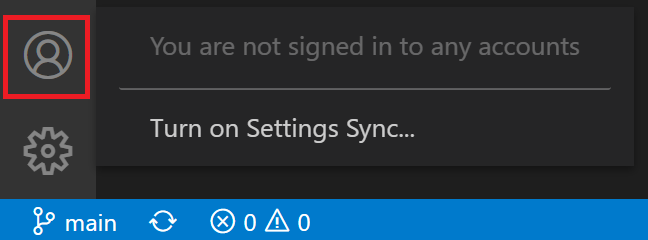
You can share your user settings across your VS Code instances with the Settings Sync feature. This feature lets you share settings, keyboard shortcuts, and installed extensions across your VS Code installs on various machines. You can enable Settings Sync via the Turn on Settings Sync command on the right of the Settings editor or on the Accounts Activity Bar context menu.