


Visual Basic supports .NET Core starting in Visual Studio 2017 Update 3 (15.3). This opens new possibilities for new applications and modernizing existing applications. Preserving domain-specific code when modernizing applications allows step-wise conversions, decreases cost, and avoids disruptions.
This post covers using Visual Basic ASP.NET Core WebAPI for the back end, along with a new TypeScript and Angular front end. Working in Visual Basic lets you work in your favorite language and reuse existing business logic. The TypeScript/Angular front end provides a responsive SPA (single-page-application) user interface.
Microsoft remains committed to supporting application development techniques including Visual Basic, WebForms, and WinForms. This post shows that if you prefer Visual Basic or choose to update your existing Visual Basic application, you can continue to use Visual Basic. You might want this to give your application a modern feel, improve the architecture or move to .NET Core.
The sample application is called Roaming Clipboard and maintains grouped links so you can find your favorite websites.

Comparing Angular with WinForms, WebForms, MVC/Razor and Silverlight
If you’re familiar with Visual Basic, you’ll be able to implement your first Web API with TypeScript and Angular solution fairly quickly. But the development process is different, so this post begins by comparing the WebAPI/Angular approach technologies you might be familiar with.
If you’ve been developing in WinForms, this will be a paradigm shift for you. Part of the code for web applications runs in the browser and part runs on the server. JavaScript in the browser responds in real time to user actions in a manner similar to WinForms, although the handling of events is somewhat different. The JavaScript running in the browser uses the Angular library and is created from TypeScript via a transpiling step. Transpiling converts TypeScript to JavaScript at compiler time.
The JavaScript of the Angular app calls a back-end WebAPI to run business logic and serve up data. By necessity, a web server also supplies the JavaScript for download, but the code runs entirely in the browser. Responding to the user is separated from retrieving data and most business logic.
If you’ve been developing in WebForms or MVC/Razor, you’re familiar with round-tripping data between the browser and the web server. Each of these technologies uses a different approach to combine the UI definition and retrieving data and business logic on the server.
For example, in WebForms, your application is controlled by the web server. If the user clicks a WebForms button, it initiates a round trip to the server. This leads to WebForms apps feeling cumbersome and outdated compared to modern apps. This happens because the browser displays a web page using the Document Object Model (DOM) and WebForms apps don’t manipulate this DOM directly. Instead they reload the entire page from the server every time content needs to be updated – supplying generated HTML and JavaScript. MVC/Razor applications improve on this scenario but still result in frequent calls to the server that give the user the impression of working with a bunch of web pages instead of a unified application.
While you can separate the UI from business logic and data retrieval when you’re using WinForms, WebForms or MVC/Razor, this code is frequently mixed together, resulting in applications that are difficult to test and maintain. In an Angular app, you’ll cleanly separate the UI and business logic and data retrieval, and you’ll be responsible for your own JavaScript – via TypeScript.
Silverlight applications made it possible to develop the front-end part of a web application directly in Visual Basic or C#. This was similar to Angular and other JavaScript libraries because you could render content in the browser. But supporting Visual Basic and C# in the browser required a comparatively large and complex browser plug-in, similar to Adobe Flash. This had a few problems, including being very performance-hungry and thus a battery killer on mobile devices. As a result, many browsers vendors banned plug-ins of this sort, so Silverlight applications are being phased out.
JavaScript and TypeScript
Fast, responsive web applications that avoid round trips to the server when navigating and updating the user interface have become popular. However, JavaScript has disadvantages: it doesn’t use strong typing and its extreme flexibility means large apps become unmaintainable without a great deal of discipline. Large JavaScript applications can be quite error-prone.
TypeScript combines the best of JavaScript and strongly typed languages. It is a strongly typed language that is transpiled into JavaScript that runs directly in the browser. This avoids extra round trips to the server. The whole web application is a single web page with a DOM that is manipulated and rebuilt when needed in the browser – leading to the name single page applications (SPA).
TypeScript also uses many language elements you know from .NET languages. The syntax is more like C# than Visual Basic, but TypeScript utilizes familiar object-oriented, type-safe concepts. It even utilizes a similar asynchronous model. TypeScript lets you develop browser applications in a way that is comfortable and effective and run these applications in the user’s browser. This explains its popularity.
Why .NET Core?
Microsoft remains committed to the .NET Framework, which is currently at version 4.7.2. In fact, you can use most of the techniques described in this post in .NET Framework 4.7.2 as well. .NET Core was chosen for this blog post to illustrate how it works. You might choose .NET Core because it is much smaller, has been cleaned of outdated techniques, runs multiple versions side by side, and is cross-platform (it works on Windows, macOS, and Linux). .NET Core generally has better performance – sometimes up to a factor of 10!
Early versions of .NET Core had limited functionality. But starting with .NET Core 2.0, you can find most of the classes, methods, and properties you’d need. There are no Windows-specific features because that doesn’t make sense on other platforms. But if you’re translating code and looking for specific features, you can check out the Windows Compatibility Pack (https://docs.microsoft.com/dotnet/core/porting/windows-compat-pack).
An Angular app with a .NET Core back end in Visual Basic
The example is simple and named “Roaming Clipboard.” It lets you categorize, archive, and access your web links directly from any browser. Because the application is browser based, you can save a link in your iPad and open it later on your Windows desktop computer. The previous screenshot shows you how the app works.
Even though there are no official ASP.NET Core templates for Visual Basic, ASP.NET Core projects can still be created in VB. The effort required to create a project is only slightly bigger. The example in this post is a ready-to-go project that is publicly hosted on GitHub. You can clone it to understand and experiment the approach, and then gradually modify and customize to your own needs. You can also find OSS projects like template creation driven by the Visual Basic community at GitHub https://github.com/vbcontrib.
The Roaming Clipboard project includes both the Angular/TypeScript front-end code and the WebAPI back end developed in Visual Basic. You need to do a few things to set up the example. The first thing you need is a copy of the code. You can do this either through Visual Studio or from the Command Line.
Cloning the repo from Visual Studio
To clone the repo from Visual Studio:
- Open Visual Studio. On the menu, select View > Team Explorer.
- Select the Manage Connections icon as shown in the following screenshot:

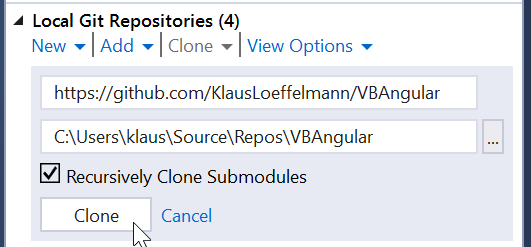
- Under Local Git Repositories, select the Clone command, then enter https://github.com/KlausLoeffelmann/VBAngular in the URL field, enter a folder for the cloned files, and select the Clone button.
Cloning the repo from the Git Command Line
If you have Git installed on your machine, you can get the code by cloning the repo:
- Open a command prompt and navigate to the directory where you want to place the source code.
- Type:
$ git clone https://github.com/KlausLoeffelmann/VBAngular

Entity Framework Core and Visual Basic
The Roaming Clipboard application uses a SQL Server LocalDB installation to store the data and Entity Framework Core to access it. If SQL Server LocalDB isn’t available on your system, you can install it using the Visual Studio Installer – it’s available under the .NET desktop development workload.
Entity Framework Core uses only the Code First approach to maintain database schema definitions. Classic Entity Framework 6.x and earlier also supported a more complex Model First approach that isn’t supported in Entity Framework Core.