Ubuntu / Linux news and application reviews.

Easily Manage / Connect To SSH Hosts With Guake Indicator

Guake Indicator is an Ubuntu AppIndicator for Guake terminal users, useful for those who need to connect to multiple SSH hosts frequently: the indicator lets you easily manage your favorite SSH hosts and establish new SSH connections via Guake.

Guake is a Quake-style drop-down terminal which can be invoked with a single keystroke and hidden by pressing the same key again.

Guake Indicator

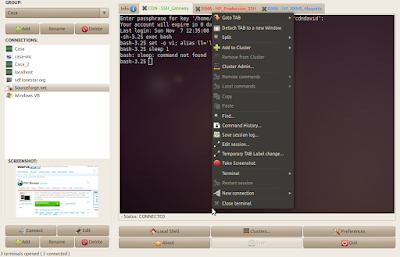
PAC Manager: Easily Manage SSH/Telnet Connections

PAC Manager

PAC Manager is an application (GUI) for easy configuring and managing SSH/Telnet connections. It supports macros, cluster connections, RDP and VNC, pre/post connections local executsions and much more.

Script To Manage A Lot Of Linux Servers Through SSH

sshdialog

It seems we're having a scripts week here, at WebUpd8. Remy sent us a script he wrote to easily manage a lot of servers through SSH. You can find the script and instructions on using it @ Raymii.org.

SSHMenu: Gnome Panel Applet For Managing SSH Connections

sshmenu gnome panel applet

SSHMenu is a GNOME panel applet that keeps all your regular SSH connections within a single mouse click. But why use an applet for SHH connections? Well, SSHMenu has a really interesting feature which I for one find it extremely useful: it uses terminal profiles to add something distinct to a SSH terminal so that you don't mix commands between machines:

2 Ways To Mount A Folder / Filesystem Through SSH

If you have access to a remote computer through SSH, but you're not very comfortable with the command line or for any other reason, you can mount a folder or the whole filesystem through SSH. This can be done in 2 ways:

SSH Server With Dynamic IP Address [How to - Linux]

A few days ago, I wrote an article on how to use your home computer to get past internet restrictions with SSH but I didn't cover the aspect of the computer running the SSH sever not having a static IP. So here is how to use DynDNS hostname for your dynamic IP.

The first thing you need to do is create an https://dyndns.com/ account and then go to My account > My hosts > add a dynamic dns and pick some hostname such as myhomepc.homelinux.com or whatever you want. This will point to your current IP but if your IP is dynamic, it will change so we need to update this info in DynDNS automatically.

For this, we'll create a script in your /etc/cron.hourly/ folder:

sudo gedit /etc/cron.hourly/dyndns

There are 2 different versions for this script: bash and python, use whichever you want from below, but make sure the file name is dyndns without extension (no .py) because the scripts in cron.hourly won't run if they have an extension: