

Page Summary
-
This guide details using the Google Mobile Ads SDK for mediation to load and display Chartboost ads in Android apps, specifically covering waterfall integrations.
-
The Chartboost mediation adapter supports Banner, Interstitial, Rewarded, and Native ad formats, as well as Waterfall integrations.
-
To set up Chartboost mediation, you need to configure settings in both the Chartboost UI to get App ID, App Signature, User ID, and User Signature, and the Ad Manager UI to create a yield group and add Chartboost as a yield partner.
-
Integrating the Chartboost SDK and adapter into your Android project can be done via Android Studio or manual integration by downloading the necessary
.aarfiles. -
Implementing privacy settings for EU consent and GDPR, and US states privacy laws, by using the
addDataUseConsent()method on the Chartboost SDK is crucial for compliance. -
Testing your implementation involves enabling test mode in both Ad Manager and Chartboost UI and verifying test ads using the ad inspector.
This guide shows you how to use Google Mobile Ads SDK (Legacy) to load and display ads from Chartboost using mediation, covering waterfall integrations. It covers how to add Chartboost to an ad unit's mediation configuration, and how to integrate the Chartboost SDK and adapter into an Android app.
Supported integrations and ad formats
The mediation adapter for Chartboost has the following capabilities:
| Integration | |
|---|---|
| Bidding | |
| Waterfall | |
| Formats | |
| Banner | |
| Interstitial | |
| Rewarded | |
| Native | |
Prerequisites
Before you continue, verify the following:
- Android API level 24 or later.
Latest Google Mobile Ads SDK (Legacy) version.
Step 1: Set up configurations in Chartboost UI
Sign up for a Chartboost account and log in once your account is verified. Then, navigate to the Apps management tab.
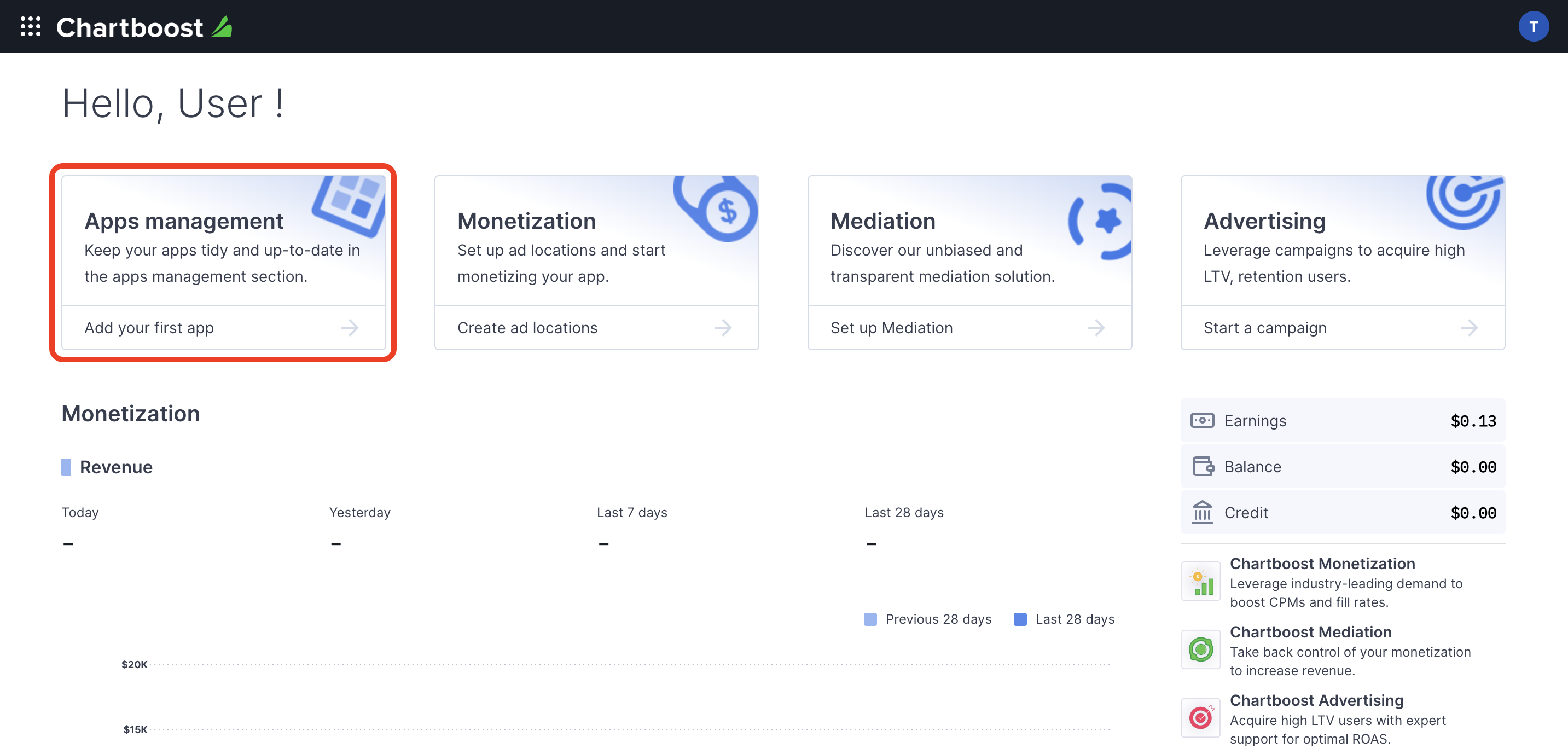
Click the Add new app button to create your app.

Fill out the rest of the form and click the Add App button to finalize your app.

After your app is created, you will be directed to its dashboard. Take note of the App ID and App Signature of your app.

Ad Manager requires the Chartboost User ID and User Signature for setting up your Ad Manager ad unit ID. You can find these parameters by clicking Chartboost mediation on the Chartboost UI.

Navigate to the Resources > API Explorer tab and take note of your User ID and User Signature located under the Authentication section.

Update your app-ads.txt
Authorized Sellers for Apps app-ads.txt is an IAB Tech Lab initiative that helps ensure your
app ad inventory is only sold through channels you've identified as authorized. To prevent a
significant loss in ad revenue, you'll need to implement an app-ads.txt file.
If you haven't done so already,
create an app-ads.txt file for Ad Manager.
To implement app-ads.txt for Chartboost, see
app-ads.txt.
Turn on test mode
You can enable test mode on your app by navigating to the Apps management tab from the Chartboost UI, selecting your app from the list and clicking on Edit app settings.

From your app's settings, you can toggle Test mode on your app.

Once test mode is enabled, you can request ads using the ad unit ID created earlier and receive a Chartboost test ad.
After you are able to receive Chartboost test ads, your app will be placed on Chartboost's Publisher App Review. In order for monetization on Chartboost to work, the publisher app review will need to be approved by Chartboost.
Step 2: Set up Chartboost demand in Ad Manager UI
Configure mediation settings for your ad unit
Sign in to your Ad Manager account.
Navigate to Delivery > Yield groups and click the New yield group button.

Enter a unique Name for your yield group, set the Status to Active, select your Ad Format, and set the Inventory type to Mobile App. Under the