
Page Summary
-
This guide details using the Google Mobile Ads SDK with AdMob Mediation to integrate and display ads from ironSource Ads via waterfall integrations.
-
It covers setting up ironSource Ads in an ad unit's mediation configuration, optimizing ad sources, and integrating the ironSource Ads SDK and adapter into your Android app.
-
Supported ad formats for ironSource Ads mediation include Banner, Interstitial, Rewarded, Rewarded Interstitial, and Native, with both Bidding and Waterfall integrations available.
-
Prerequisites include Android API level 23 or higher, the latest Google Mobile Ads SDK, and completing the AdMob mediation Get started guide.
-
The process involves configuring settings in the ironSource Ads UI (adding apps, creating instances, and locating API keys for waterfall), setting up ironSource Ads demand in the AdMob UI (configuring mediation settings and adding ironSource Ads as an ad source), importing the ironSource Ads SDK and adapter into your project, implementing privacy settings, adding required code, and testing the implementation with test ads.
This guide shows you how to use Google Mobile Ads SDK (Legacy) to load and display ads from ironSource Ads using AdMob Mediation, covering waterfall integrations. It covers how to add ironSource Ads to an ad unit's mediation configuration, how to set up ad source optimization, and how to integrate the ironSource Ads SDK and adapter into your Android app.
Supported integrations and ad formats
The mediation adapter for ironSource Ads has the following capabilities:
| Integration | |
|---|---|
| Bidding | |
| Waterfall | |
| Formats | |
| Banner | |
| Interstitial | |
| Rewarded | |
| Rewarded Interstitial | 1 |
| Native | |
1 This format is only supported in waterfall integration.
Prerequisites
Before you continue, verify the following:
- Android API level 23 or later.
- [For bidding]: To integrate all supported ad formats in bidding, use IronSource adapter 8.5.0.1 or later (latest version recommended).
Latest Google Mobile Ads SDK (Legacy) version.
Step 1: Set up configurations in ironSource Ads UI
Sign up and sign in to your ironSource Ads account.
Add a new app
To add a new app, navigate to Ads > Apps and click Add app.
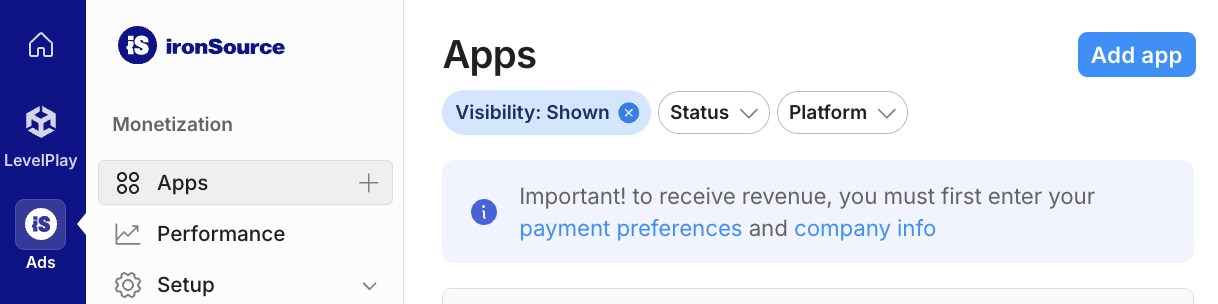
Fill out the form and click Add app.

Take note of the App Key, then select the ad formats your app supports and click Continue.

Create an instance
Next, configure an instance for the app you added.
Navigate to Ads > Setup > Instances. Select the app and click Create instance.

Bidding
Fill out the form and select Bidding for Pricing. Click Save and close.

Take note of the Instance ID.

Waterfall
Fill out the form and click Save and close.

Take note of the Instance ID.

Locate your Reporting API Key
Bidding
This step isn't required for bidding integrations.
Waterfall
Click the API tab in My Account page and take note of your Secret Key and Refresh Token.

Update your app-ads.txt
Authorized Sellers for Apps app-ads.txt is an IAB Tech Lab initiative that helps ensure your
app ad inventory is only sold through channels you've identified as authorized. To prevent a
significant loss in ad revenue, you'll need to implement an app-ads.txt file.
If you haven't done so already,
set up an app-ads.txt file for your app.
To implement app-ads.txt for ironSource, see
ironSource authorized resellers.
Turn on test mode
Follow the instructions in ironSource Ads's Integration testing guide on how to enable ironSource Ads test ads.
Step 2: Set up ironSource Ads demand in AdMob UI
Configure mediation settings for your ad unit
You need to add ironSource Ads to the mediation configuration for your ad unit.
First, sign in to your AdMob account. Next, navigate to the Mediation tab. If you have an existing mediation group you'd like to modify, click the name of that mediation group to edit it, and skip ahead to Add ironSource Ads as an ad source.
To create a new mediation group, select Create Mediation Group.

Enter your ad format and platform, then click Continue.

Give your mediation group a name, and select locations to target. Next, set the mediation group status to Enabled, and then click Add Ad Units.

Associate this mediation group with one or more of your existing AdMob ad units. Then click Done.
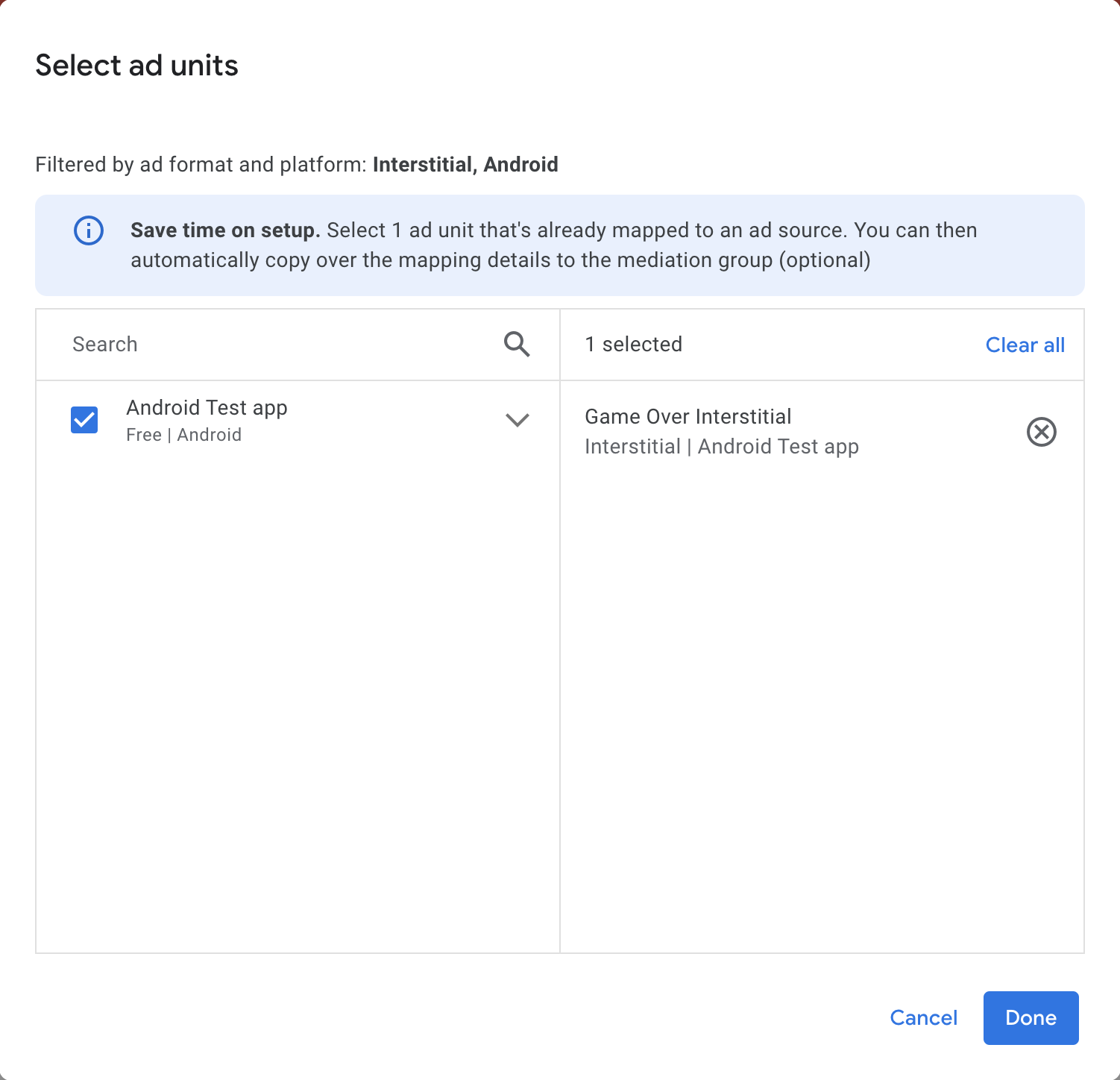
You should now see the ad units card populated with the ad units you selected:

Add ironSource Ads as an ad source
Bidding
In the Ad Sources section, find the Bidding card and select Add ad source. Then select ironSource Ads .
Click How to sign a partnership agreement and set up a bidding partnership with ironSource Ads.

Click Acknowledge & agree, then click Continue.

If you already have a mapping for ironSource Ads, you can select it. Otherwise, click Add mapping.

Next, enter the App Key and Instance ID obtained in the previous section. Then click Done.

Waterfall
Under the Waterfall card in the Ad Sources section, select Add Ad Source.
Select ironSource Ads and enable the Optimize switch. Enter the Secret Key and Refresh Token obtained in the previous section to set up ad source optimization for ironSource Ads. Then enter an eCPM value for ironSource Ads and click Continue.

If you already have a mapping for ironSource Ads, you can select it. Otherwise, click Add mapping.

Next, enter the App Key and Instance ID obtained in the previous section. Then click Done.

Add ironSource Mobile to GDPR and US state regulations ad partners list
Follow the steps in European regulations settings and