

This tutorial shows you how to configure and deploy a sample API and the Extensible Service Proxy V2 (ESPv2) running in prebuilt Docker containers on Compute Engine.
The sample code's REST API is described using the OpenAPI specification. The tutorial also shows you how to create an API key and use it in requests to the API.
For an overview of Cloud Endpoints, see About Endpoints and Endpoints architecture.
Objectives
Use the following high-level task list as you work through the tutorial. All tasks are required to successfully send requests to the API.- Set up a Google Cloud project. See Before you begin.
- Create a Compute Engine VM instance. See Creating a Compute Engine instance.
- Download the sample code. See Getting the sample code.
- Configure the
openapi.yamlfile, which is used to configure Endpoints. See Configuring Endpoints. - Deploy the Endpoints configuration to create a Endpoints service. See Deploying the Endpoints configuration.
- Deploy the API and ESPv2 on the Compute Engine VM. See Deploying the API backend.
- Send a request to the API by using an IP address. See Sending a request by using IP address.
- Configure a DNS record for the sample API. See Configuring DNS for Endpoints.
- Send a request to the API by using the fully qualified domain name. See Sending a request by using FQDN.
- Track API activity. See Tracking API activity.
- Avoid incurring charges to your Google Cloud account. See Clean up.
Costs
In this document, you use the following billable components of Google Cloud:
To generate a cost estimate based on your projected usage,
use the pricing calculator.
When you finish the tasks that are described in this document, you can avoid continued billing by deleting the resources that you created. For more information, see Clean up.
Before you begin
- Sign in to your Google Cloud account. If you're new to Google Cloud, create an account to evaluate how our products perform in real-world scenarios. New customers also get $300 in free credits to run, test, and deploy workloads.
-
In the Google Cloud console, on the project selector page, select or create a Google Cloud project.
Roles required to select or create a project
- Select a project: Selecting a project doesn't require a specific IAM role—you can select any project that you've been granted a role on.
-
Create a project: To create a project, you need the Project Creator role
(
roles/resourcemanager.projectCreator), which contains theresourcemanager.projects.createpermission. Learn how to grant roles.
-
Verify that billing is enabled for your Google Cloud project.
-
In the Google Cloud console, on the project selector page, select or create a Google Cloud project.
Roles required to select or create a project
- Select a project: Selecting a project doesn't require a specific IAM role—you can select any project that you've been granted a role on.
-
Create a project: To create a project, you need the Project Creator role
(
roles/resourcemanager.projectCreator), which contains theresourcemanager.projects.createpermission. Learn how to grant roles.
-
Verify that billing is enabled for your Google Cloud project.
- Make a note of the project ID because it's needed later.
-
You need an application to send requests to the sample API.
- Linux and macOS users: This tutorial provides an example of using
curl, which typically comes pre-installed on your operating system. If you don't havecurl, you can download it from thecurlReleases and downloads page. - Windows users: This tutorial provides an example using
Invoke-WebRequest, which is supported in PowerShell 3.0 and later.
- Linux and macOS users: This tutorial provides an example of using
- Download the Google Cloud CLI.
-
Update the gcloud CLI and install the Endpoints
components.
gcloud components update
-
Make sure that the Google Cloud CLI (
gcloud) is authorized to access your data and services on Google Cloud:gcloud auth login
-
Set the default project to your project ID.
gcloud config set project YOUR_PROJECT_ID
Replace YOUR_PROJECT_ID with your project ID. If you have other Google Cloud projects, and you want to use
gcloudto manage them, see Managing gcloud CLI configurations.
When you finish the tasks that are described in this document, you can avoid continued billing by deleting the resources that you created. For more information, see Clean up.
Creating a Compute Engine instance
- In the Google Cloud console, go to the Create an instance page.
- Click Select.
- In the Firewall section, select Allow HTTP traffic and Allow HTTPS traffic.
- To create the VM, click Create.
- Make sure you that you can connect to your VM instance.
- In the list of virtual machine instances, click SSH in the row of the instance that you want to connect to.
- You can now use the terminal to run Linux commands on your Debian instance.
- Enter
exitto disconnect from the instance.
- Make a note the instance name, zone, and external IP address because they are needed later.
To create a Compute Engine instance:
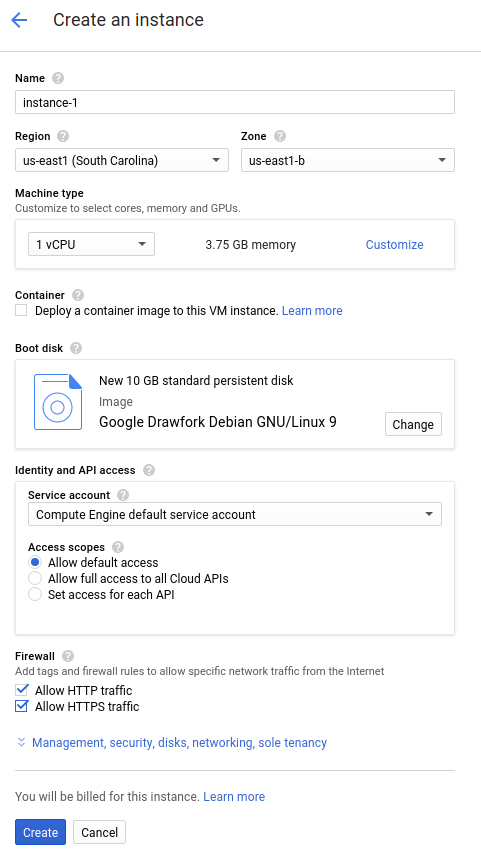
Allow a short time for the instance to start up. Once ready, it is listed on the VM Instances page with a green status icon.
Downloading the sample code
Download the sample code to your local machine.
To clone or download the sample API:
Alternatively, download the sample
as a zip file and extract it.
To clone or download the sample API:
Alternatively, download the sample
as a zip file and extract it.
To clone or download the sample API:
To clone or download the sample API:
Alternatively, download the sample
as a zip file and extract it.
To clone or download the sample API:
Alternatively, download the sample
as a zip file and extract it.
To clone or download the sample API:
Alternatively, download the sample
as a zip file and extract it.
git clone https://github.com/GoogleCloudPlatform/java-docs-samples
cd java-docs-samples/endpoints/getting-started
git clone https://github.com/GoogleCloudPlatform/python-docs-samples
cd python-docs-samples/endpoints/getting-started
GOPATH environment variable is set.
go get -d github.com/GoogleCloudPlatform/golang-samples/endpoints/getting-started
cd $GOPATH/src/github.com/GoogleCloudPlatform/golang-samples/endpoints/getting-started
git clone https://github.com/GoogleCloudPlatform/php-docs-samples
cd php-docs-samples/endpoints/getting-started
git clone https://github.com/GoogleCloudPlatform/ruby-docs-samples
cd ruby-docs-samples/endpoints/getting-started
git clone https://github.com/GoogleCloudPlatform/nodejs-docs-samples
cd nodejs-docs-samples/endpoints/getting-started
Configuring Endpoints
You must have an OpenAPI document based on either OpenAPI 2.0 or OpenAPI 3.x that describes the surface of your apps and any authentication requirements. To learn more, see Supported OpenAPI versions.
You also need to add a Google-specific field that contains the URL for each app so that ESPv2 has the information it needs to invoke an app. If you are new to OpenAPI, see OpenAPI overview for more information.
OpenAPI 2.0
To configure Endpoints using an OpenAPI 2.0 specification, you can use
the openapi.yaml file available in the endpoints/getting-started
directory of the downloaded sample code.
The contents of the OpenAPI 2.0 specification should look similar to the following:
swagger: "2.0"
info:
  description: "A simple Google Cloud Endpoints API example."
  title: "Endpoints Example"
  version: "1.0.0"

host: "echo-api.endpoints.YOUR_PROJECT_ID.cloud.goog"

consumes:
  - "application/json"
produces:
  - "application/json"

schemes:
# Uncomment the next line if you configure SSL for this API.
# - "https"
  - "http"

paths:
  /echo:
    post:
      description: "Echo back a given message."
      operationId: "echo"
      produces:
        - "application/json"
      responses:
        200:
          description: "Echo"
          schema:
            $ref: "#/definitions/echoMessage"
      parameters:
        -
          description: "Message to echo"
          in: body
          name: message
          required: true
          schema