Improve the Performance of Gradle Builds
- 0. Inspect your Build
- 1. Update Versions
- 2. Enable Parallel Execution
- 3. Re-enable the Gradle Daemon
- 4. Enable the Build Cache
- 5. Enable the Configuration Cache
- 6. Enable Incremental Build for Custom Tasks
- 7. Create Builds for Specific Developer Workflows
- 8. Increase the Heap Size
- 9. Optimize Configuration
- 10. Optimize dependency resolution
- 11. Optimize Java projects
- 12. Optimize Android Projects
- 13. Improve the performance of older Gradle releases
Build performance is essential to productivity. The longer a build takes, the more it disrupts your development flow. Since builds run many times a day, even small delays add up. The same applies to Continuous Integration (CI).
Investing in build speed pays off. This section explores ways to optimize performance, highlights common pitfalls, and explains how to avoid them.
| # | Recommendation |
|---|---|
1 |
|
2 |
|
3 |
|
4 |
|
5 |
|
6 |
|
7 |
|
8 |
|
9 |
|
10 |
|
11 |
|
12 |
|
13 |
0. Inspect your Build
Before making any changes, inspect your build with a Build Scan or profile report. A thorough inspection helps you understand:
-
Total build time
-
Which parts of the build are slow
This provides a baseline to measure the impact of optimizations.
To get the most value from this page:
-
Inspect your build.
-
Apply a change.
-
Inspect your build again.
If the change improves build times, keep it. If it doesn’t, revert the change and try another approach.
For reference, the following Build Scan snapshot is a build of a project created using gradle init.
It is a Java (JDK 21) Application and library project using Kotlin build files:
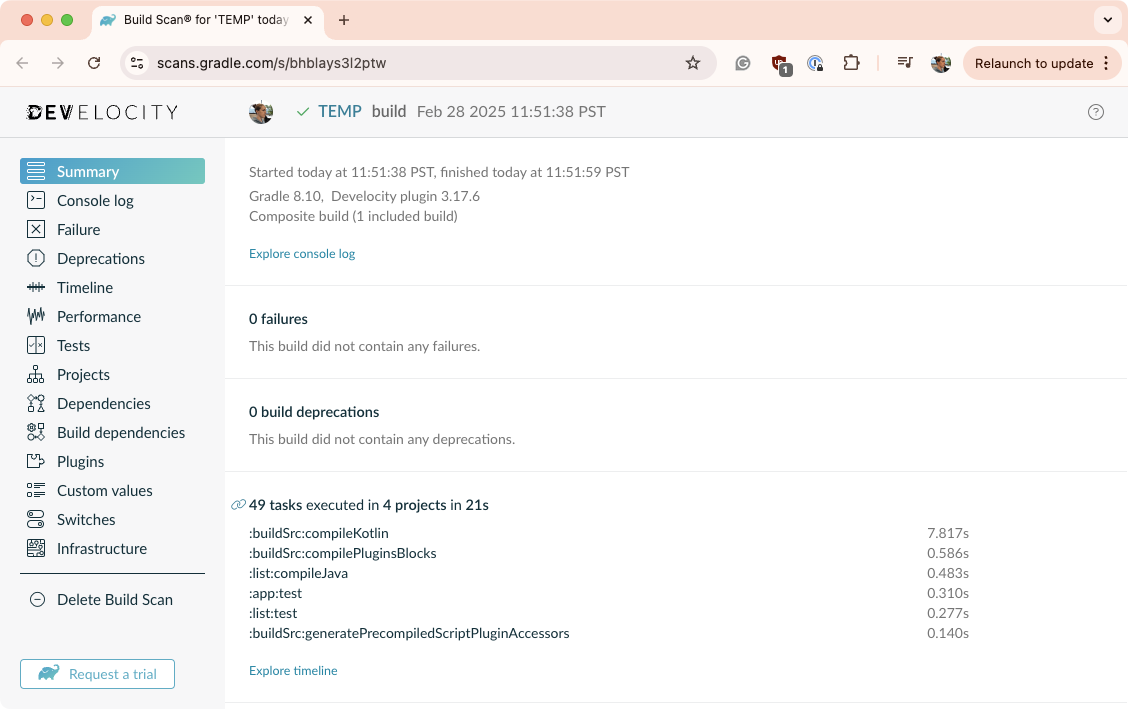
It builds in 21 seconds using Gradle 8.10.
1. Update Versions
Gradle
Each Gradle release brings performance improvements. Using an outdated version means missing out on these gains. Upgrading is low-risk since Gradle maintains backward compatibility between minor versions. Staying up to date also makes major version upgrades smoother by providing early deprecation warnings.
You can use the Gradle Wrapper to update the version of Gradle by running gradle :wrapper --gradle-version X.X where X.X is the desired version.
When our reference project is updated to use Gradle 8.13, the build (./gradlew clean build) takes 8 seconds:

Java
Gradle runs on the Java Virtual Machine (JVM), and Java updates often enhance performance. To get the best Gradle performance, use the latest Java version.
| Don’t forget to check out compatibility guide to make sure your version of Java is compatible with your version of Gradle. |
Plugins
Plugins play a key role in build performance. Outdated plugins can slow down your build, while newer versions often include optimizations. This is especially true for the Android, Java, and Kotlin plugins. Keep them up to date for the best performance.
Simply look at all the declared plugins in your project and check if a newer version is available:
plugins {
    id("org.jlleitschuh.gradle.ktlint") version "12.0.0" // A newer version is available on the Gradle Plugin Portal
}
2. Enable Parallel Execution
Most projects consist of multiple subprojects, some of which are independent. However, by default, Gradle runs only one task at a time.
To execute tasks from different subprojects in parallel, use the --parallel flag:
$ gradle <task> --parallelTo enable parallel execution by default, add this setting to gradle.properties in the project root or your Gradle home directory:
org.gradle.parallel=trueParallel builds can significantly improve build times, but the impact depends on your project’s structure and inter-subproject dependencies. If a single subproject dominates execution time or there are many dependencies between subprojects, the benefits will be minimal. However, most multi-project builds see a noticeable reduction in build time.
When the parallel flag is used on our reference project, the build (./gradlew clean build --parallel) time is 7 seconds:

Visualize Parallelism with Build Scan
A Build Scan provides a visual timeline of task execution in the "Timeline" tab.
In the example below, the build initially has long-running tasks at the beginning and end, creating a bottleneck:

By adjusting the build configuration to run these two slow tasks earlier and in parallel, the overall build time is reduced from 8 seconds to 5 seconds:

Configure Tooling API actions parallelism
By enabling Parallel Execution, you also allow parallelism for Tooling API actions. This means that Tooling API clients, such as IDEs, can do some of their work faster. In practice, this improves the speed of scenarios like IDE sync.
However, enabling Parallel Execution may not work for all builds. In some cases, the additional parallelism may lead to instability if tasks access shared mutable state across project boundaries. In other cases, the parallel Tooling API actions might misbehave for similar reasons.
If you observe such problems after enabling Parallel Execution, you should consider disabling it to preserve the reliability of the build results. At the same time, it is rare for builds to have problems with tasks and Tooling API actions at the same time.
Since Gradle 9.4.0, there is an additional option org.gradle.tooling.parallel
that allows controlling parallelism of Tooling API actions independently of task execution parallelism.
For instance, you can enable Tooling parallelism without task parallelism: