


Transfer your data with Windows Backup
You’ve got important stuff on your PC. Take your files and most settings and apps6 with you to your new Windows 11 computer with Windows Backup.1 2 5
How to use Windows Backup
Windows Backup is part of the latest update for Windows 10 and Windows 11 PCs. When you sign in with your Microsoft account, Windows Backup will help you securely save and transfer what’s important to you.5 6
Back up your PC files to OneDrive
The best, most secure way to back up your Windows 10 PC is with OneDrive.2 Easily move your files and memories to the cloud, then access them on your new computer.3

Save your files, settings and apps
When you save what you love on your old PC, Windows Backup will save you time by automatically moving your data to your new computer.3

Feel instantly at home on your new PC
When you set up your new Windows 11 PC, you’ll be able to restore your stuff and settle into the best Windows experience ever.
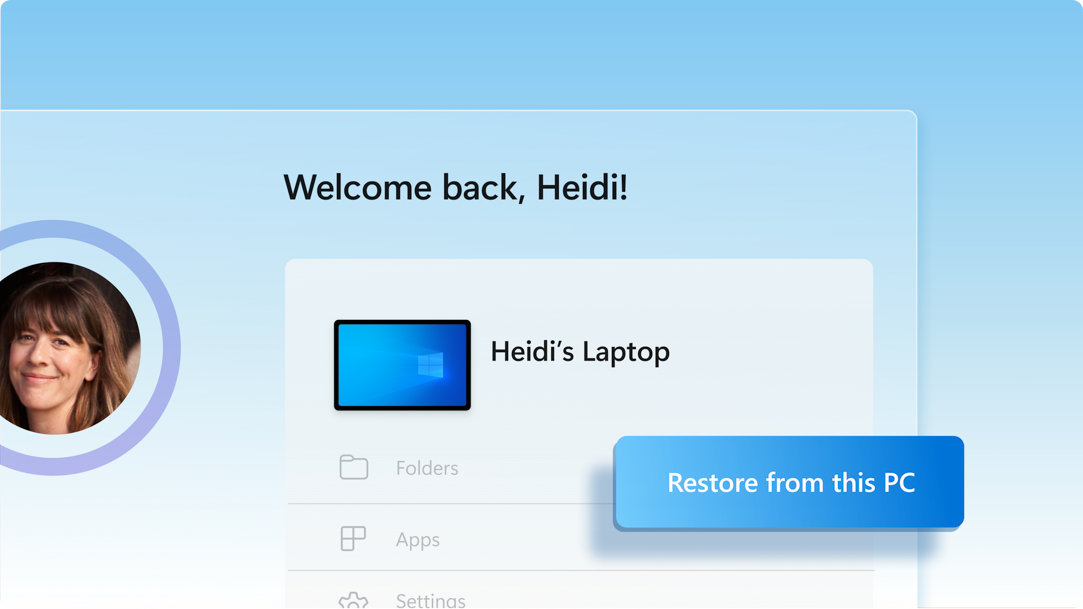
3 steps to secure and move your data with Windows Backup
When you’re ready to make the move, follow these instructions to save, then transfer your files and most settings and apps6 to your new Windows 11 PC.5

1. Update your Windows 10 PC
Make sure you’re using the most up-to-date version of Windows 10. Check for updates

2. Save to Windows Backup
Use the Search bar in Windows 10 to locate and open Windows Backup, then follow the steps to save your data to your Microsoft account.3

3. You’re ready to transfer your data
The first time you start your new Windows 11 PC, sign in and follow the set-up instructions to bring your stuff with you.3 5 6
Ready to find your next PC?
Moving to a new PC has never been easier. Shop, filter and compare Windows computers so you can find the right one for you.
