Quickstart: Complete your first task with an agent
In this quickstart, you use an AI agent in Visual Studio Code to build a small web app from a natural-language prompt. You then review the generated code, let the agent validate the app with browser tools, and verify the result yourself.
Prerequisites
-
Set up GitHub Copilot in VS Code.
Start with the Copilot harness to complete this quickstart. It connects the model to the tools that build and test your app.
Requests in this quickstart use AI credits from your Copilot plan. Copilot Free includes a monthly allowance. Open the Copilot status dashboard from the Status Bar to monitor your monthly usage. Learn more about AI credits and model costs and what happens when you reach a limit.
1. Create a project folder
Start by creating an empty folder for the quickstart app. In the next section, you open this folder in VS Code and ask an agent to build the app.
Run the following command in your terminal to create the folder:
mkdir agent-quickstart
2. Build the app
VS Code lets you work with agents in different ways:
- Chat view: work with an agent alongside your code in the editor, focused on the current project.
- Agents window: assign (high-level) tasks to agents and switch between projects without reloading the window.
Choose the approach that works best for you and follow the steps in the corresponding tab below.
-
In VS Code, select File > Open Folder from the menu, and then open the
agent-quickstartfolder.If VS Code asks whether you trust the folder, select Manage from the notification, and then select Trust.

-
Open the Chat view with ⌃⌘I (Windows, Linux Ctrl+Alt+I), and then select
+to start a new chat.
If you already had an active chat, starting a new chat does not close the previous one. The previous chat remains accessible via the sessions list.
-
Configure the following settings for the chat session. Keep the default values for any other options.
Control Value Short description Session Target Copilot Selects the Copilot harness and its tools and workflow for the session. Agent Agent Uses tools to plan, edit files, run commands, and validate the result. Language model Auto Automatically selects a model based on task complexity and availability. Permissions Manual permissions Requests your approval for running tools or accessing resources. The agent can make file edits in your project folder. 
-
Enter the following prompt and press Enter:
Create a task list web app in a single index.html file with embedded CSS and JavaScript. Let me add, complete, and delete tasks. Save the tasks in local storage so they persist after a page reload. Use no external libraries. -
Follow the agent's progress and review each approval request before you accept it.
The agent creates the
index.htmlfile and saves updates as it progresses. Approval prompts appear for actions that aren't covered by your approval settings.TipAt any time you can stop the agent by selecting the Stop button in the chat input or steer it in another direction by sending a new prompt.
-
If the agent asks to open the
index.htmlfile in the integrated browser, select Allow in this Session. You can interact with the app directly in the integrated browser in VS Code.
The Agents window is a dedicated window for interacting with agents across different projects.
-
To open the Agents window, select Open in Agents in the title bar of VS Code or run Chat: Open Agents window from the Command Palette (⇧⌘P (Windows, Linux Ctrl+Shift+P)).

-
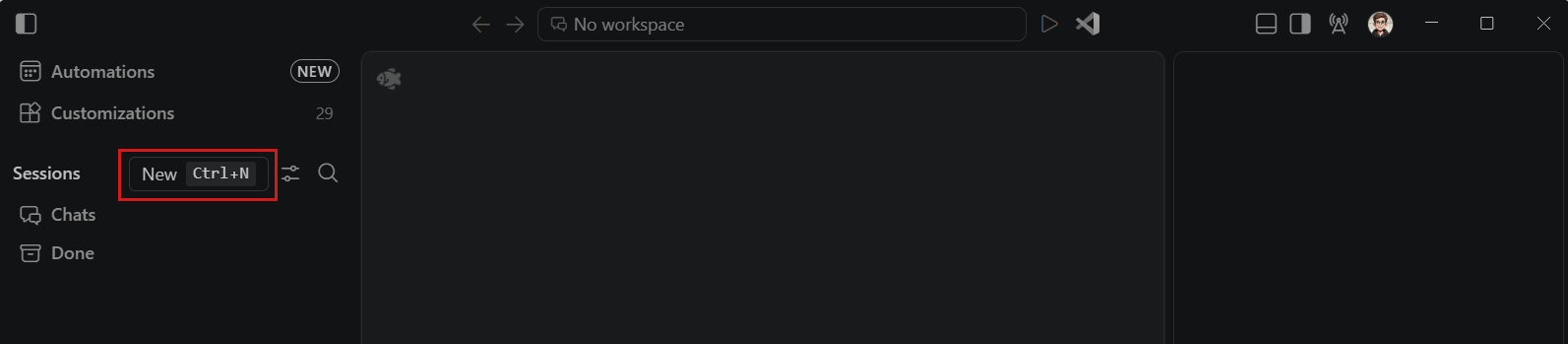
Select New at the top of the left sidebar to start a new agent session.
-
Because the Agents window can operate across different projects, select the
agent-quickstartfolder you created earlier from the dropdown.If VS Code asks whether you trust the folder, select Trust.
-
Configure the following settings for the session. Keep the default values for any other options.
Control Value Short description Session Target Copilot Selects the Copilot harness and its tools and workflow for the session. Agent Agent Uses tools to plan, edit files, run commands, and validate the result. Language model Auto Automatically selects a model based on task complexity and availability. Permissions Manual permissions Requests your approval for running tools or accessing resources. The agent can make file edits in your project folder. 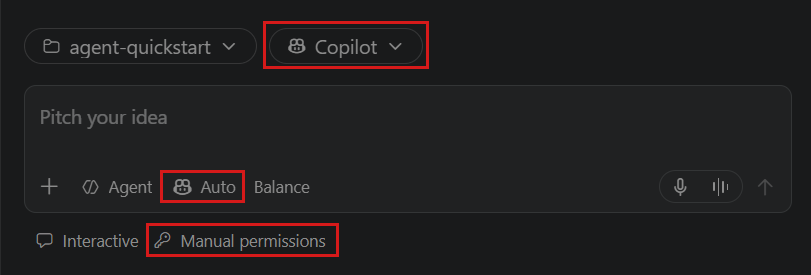
-
Enter the following prompt and press Enter:
Create a task list web app in a single index.html file with embedded CSS and JavaScript. Let me add, complete, and delete tasks. Save the tasks in local storage so they persist after a page reload. Use no external libraries. -
Follow the agent's progress and review each approval request before you accept it.