
What you’ll learn
- How to sign in to BoldCreate with your Syncfusion account
- How long you stay signed in
- How to sign out
- What to do if sign-in doesn’t work
Sign in
BoldCreate uses your Syncfusion account. You sign in through your web browser, so your password is entered on the secure Syncfusion sign-in page, never inside the app.
- Open BoldCreate. You see the Sign in to Bold Create screen.
- Click Sign in. Your web browser opens the Syncfusion sign-in page. In BoldCreate, the button changes to Waiting for the browser… with the message “Finish signing in in your browser, then come back here.”

- In your browser, sign in with your Syncfusion account.
- When you see Signed in to Bold Create, you can close the browser tab.
- BoldCreate comes to the front and shows the Start a new task page.

Note: You have 5 minutes to finish signing in. If it takes longer, BoldCreate shows “Sign-in was not completed. Please try again.” Click Sign in again.
Staying signed in
- You stay signed in when you close and reopen BoldCreate.
- BoldCreate keeps your sign-in safe in your computer’s secure storage: Keychain on macOS or Credential Manager on Windows.
- If you’re asked to sign in again, your session may have ended, for example, because you signed out somewhere else. Sign in again.
Your profile menu
Your name and picture, or your initials, appear at the bottom of the sidebar. Click them to open your profile menu.
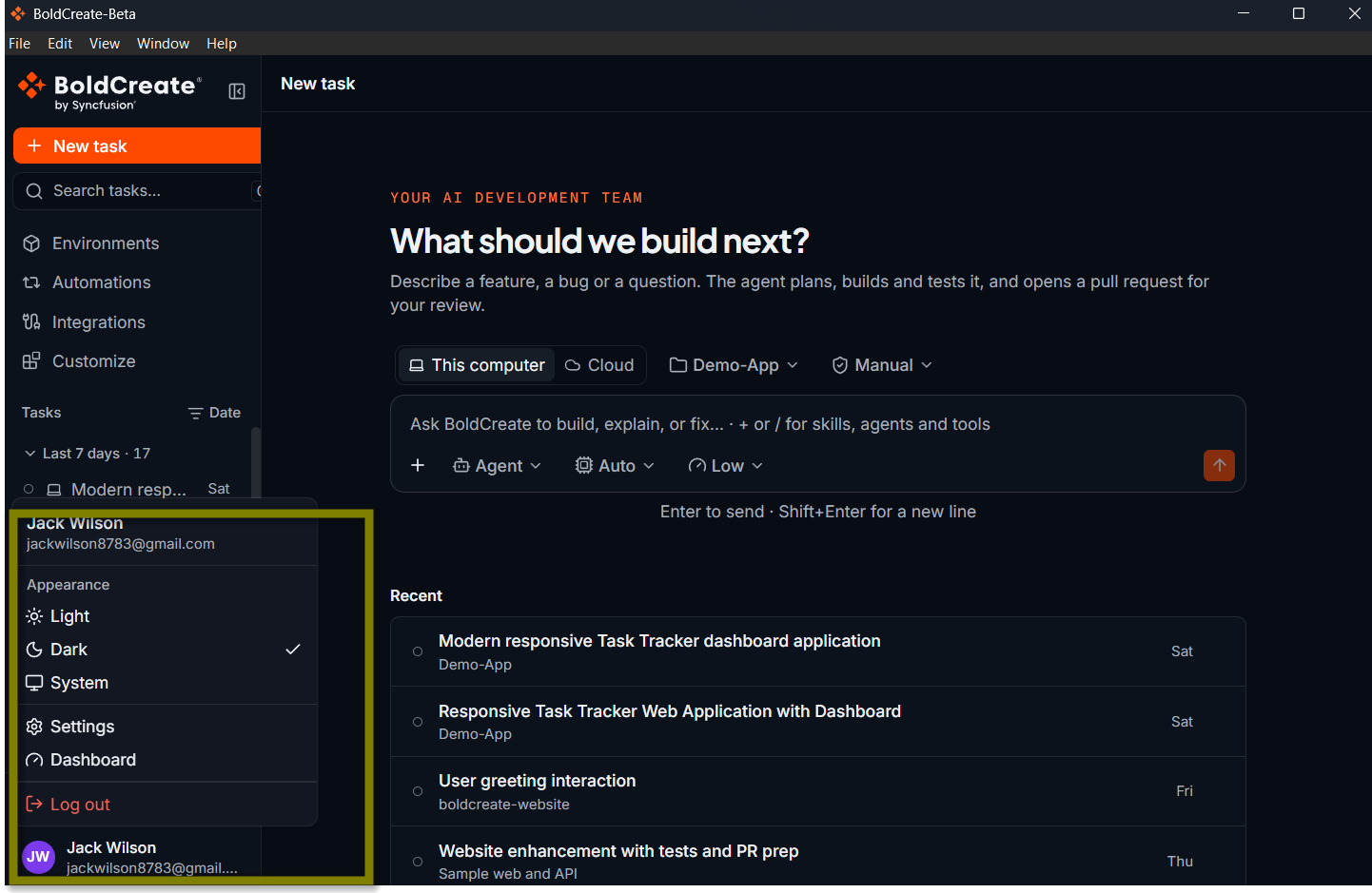
| Option | What it does |
|---|---|
| Appearance | Choose Light, Dark, or System (follows your computer’s setting). The app starts in Dark. |
| Settings | Opens your BoldCreate account settings in your web browser. |
| Dashboard | Opens your BoldCreate dashboard in your web browser. |
| Log out | Signs you out of BoldCreate. |
For appearance options, see Settings and preferences.
Sign out
You can sign out in either of these ways:
- Click your name at the bottom of the sidebar, then click Log out.
- From the menu bar, choose File > Sign Out.
Note: Signing out stops any task that is running on your computer and closes any open terminals. Your tasks are not deleted.
If sign-in doesn’t work
| What you see | What to do |
|---|---|
| “Sign-in was not completed. Please try again.” | You may have closed the browser tab or taken longer than 5 minutes. Click Sign in and try again. |
| “Sign-in failed. Please try again.” | Check your internet connection, then click Sign in again. |
| The browser shows Sign-in did not complete | Go back to BoldCreate and click Sign in again. |
| Authentication unavailable – “Unable to verify the current session.” | Check your internet connection, then click Try again. |
| The browser doesn’t open | Make sure you have a default web browser set on your computer, then try again. |